There is a lot of information coming at us in the FileMaker community right now — especially related to AI. Visit any community discussion board — or a blog like this one — and we are confronted with a stream of new AI vocabulary: prompting strategies, context engineering, agents, harnesses, MCPs, skills. It’s all genuinely exciting. It can also be disorienting if you’re still early in your own AI exploration. With everything happening at once, where do you even start to look when you’re ready to dig deeper?
I suggest starting with AI skills.
A skill is small enough to understand completely in one sitting, and it turns out to be the basic building block of most of the rest of that vocabulary. Once we understand this core idea, the rest of the AI landscape starts to make more sense.
So this article is an orientation for developers with strong FileMaker knowledge but limited hands-on time with AI. We’ll cover what a skill actually is, how it works, how you would build, install, and improve one, and where a skill helps versus where it’s the wrong tool.
A quick note on tools: I mostly refer to Claude and Claude Code in this skills discussion, but as I explain later, much of this material is relevant to other AI tools. Both of those terms — along with the rest of the vocabulary in that opening list — are defined in the Glossary at the end.
If Claude Code is new to you, you can start by reading Anthropic’s Quickstart, which covers installation and a first session. If you’re not familiar with the Terminal command line environment, I would recommend beginning with Claude Code inside the desktop app. When you’re ready to explore Claude Code’s full range of possibilities, take a look at the Terminal guide for new users, written specifically for people who have never worked in a command line environment. I should point out that Claude Code requires a paid plan (Pro, Max, Team, or Enterprise) and is not part of the free tier. Links for all of these are in Resources at the end.
What a Skill Is
An AI skill is two things at once: a file (or a small collection of files) sitting on disk, and a focused capability the AI reaches for when the work calls for it.
Skill File
At its core, a skill is a single plain-text file named SKILL.md — the skill file. (The .md marks it as markdown, a plain-text format we’ll come back to in a few paragraphs.) A working skill can be one file that can be read top to bottom, often in just a minute or two.
The skill file has two parts: a short metadata block at the top called frontmatter, and the instructions below it. Here is a small example skill we’ll return to throughout this article:
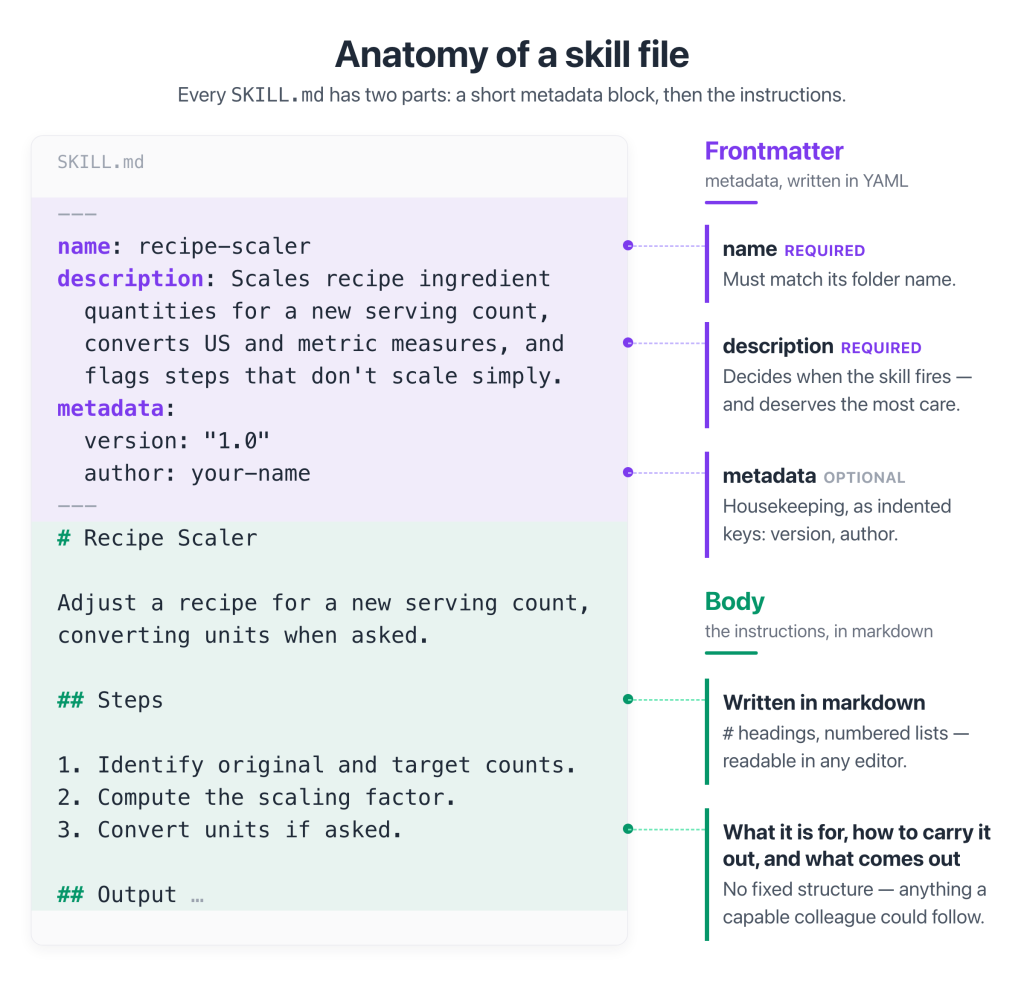
The frontmatter is the block between the — markers, written in YAML, a bare-bones label: value format. Each line has a job, and only name and description are required (other optional labels like license and compatibility exist but are rarely needed):
- name identifies the skill: lowercase, hyphens instead of spaces. It must match the name of the folder the skill lives in.
- description determines when the skill is used: during a conversation the model reads it and decides whether the skill applies to what you asked. A vague description (“helps with cooking”) rarely triggers; a specific one, like the example above, triggers when the work matches and stays out of the way when it doesn’t. Once you have several skills installed, descriptions are also judged against each other, and overlap can create confusion over which skill should be triggered. For this reason, defining what triggers a skill deserves careful attention.
- metadata is an optional catch-all for housekeeping, written as indented keys — sub-labels nested underneath metadata: a version to track the skill as it evolves, an author, whatever helps you manage it. (Indentation is structural in YAML — the two leading spaces make these part of metadata.)
Everything after the frontmatter is the body. This is where the skill defines what it is for, how to carry it out, and what the output should look like. There’s no fixed structure to the skill body. It can be written in any way that would let a capable colleague do the job well.
Markdown
You’ll notice that the body makes use of hash marks # and a few other unusual text conventions. That’s because it’s written in markdown format. That’s what the .md stands for in the file name — markdown. Markdown is the same plain-text convention behind GitHub README files, for example: a # starts a heading, multiple ## indicate hierarchical sub-headers, dashes make a bulleted list, * and ** are used to emphasize text, but the raw text is still human-readable in any editor. Markdown has become the common language of technical documentation and of instructions to AI models.
If you want to learn more about markdown, markdownguide.org is a good place to start.
Skill Folder
The skill folder matters more than you might expect: the folder, not the SKILL.md file itself, is the skill’s identity on disk. The folder name must match the frontmatter name in the SKILL.md file. In our example above, the SKILL.md file with our skill named recipe-scaler should be inside a folder also named recipe-scaler/.
Skill File vs. Skill Package
When a skill grows beyond one file, the folder includes supporting files. We’ll call the whole folder, including the SKILL.md and all helper files, the skill package:
- references/ — material the skill consults on demand: lookup tables, conventions, catalogs.
- assets/ — templates and static resources the skill adapts or reuses rather than generating from scratch.
- scripts/ — executable code (Python, typically) for the parts of the work that must be exact rather than interpreted.
- I’ll keep the two terms distinct: the skill file is SKILL.md; the skill package is the whole folder.
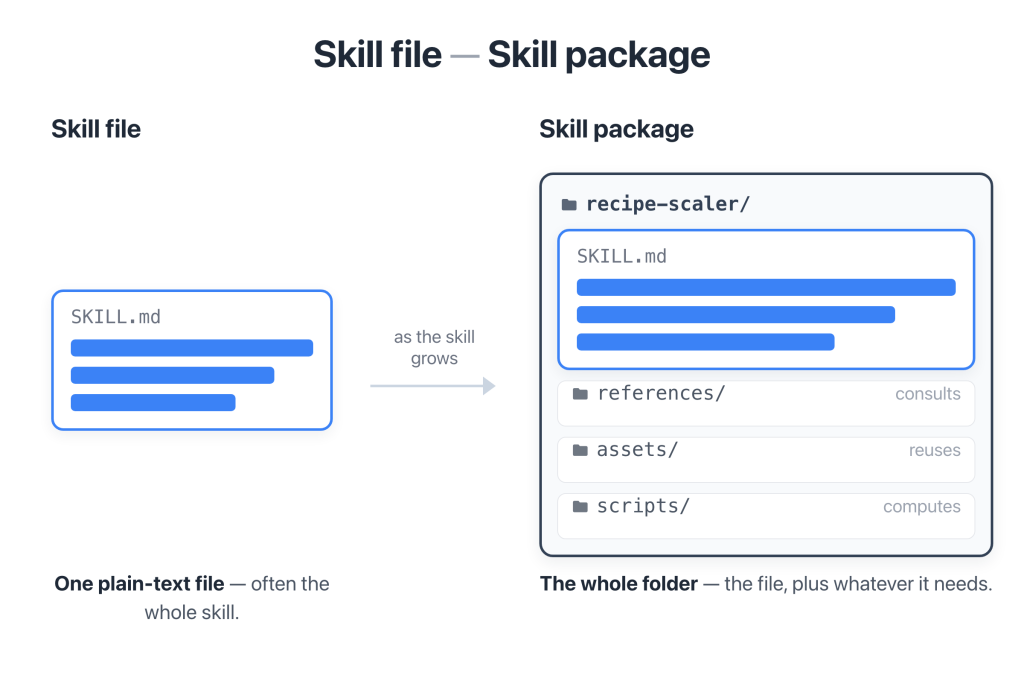
Skill file versus skill package — a single SKILL.md on the left, and the same folder opened to show SKILL.md plus references, assets, and scripts subfolders on the right.
How a Skill Works
You don’t run a skill the way you run a FileMaker script. You simply make your normal request, and if it matches a skill’s description, the model pulls that skill’s instructions into play and follows them. (Claude Code also lets you call a skill by name when you want it explicitly). From the user’s point-of-view, the AI just got noticeably better at that skill’s task.
Progressive Disclosure
Underneath, skills are deliberately careful about how much they load, through a pattern called progressive disclosure, which works in three layers. At the start of a session, only the frontmatter descriptions are viewed — a short paragraph per skill, enough to judge relevance. When a skill triggers, its full instructions load. And only if the work calls for a particular reference file does that file get read.
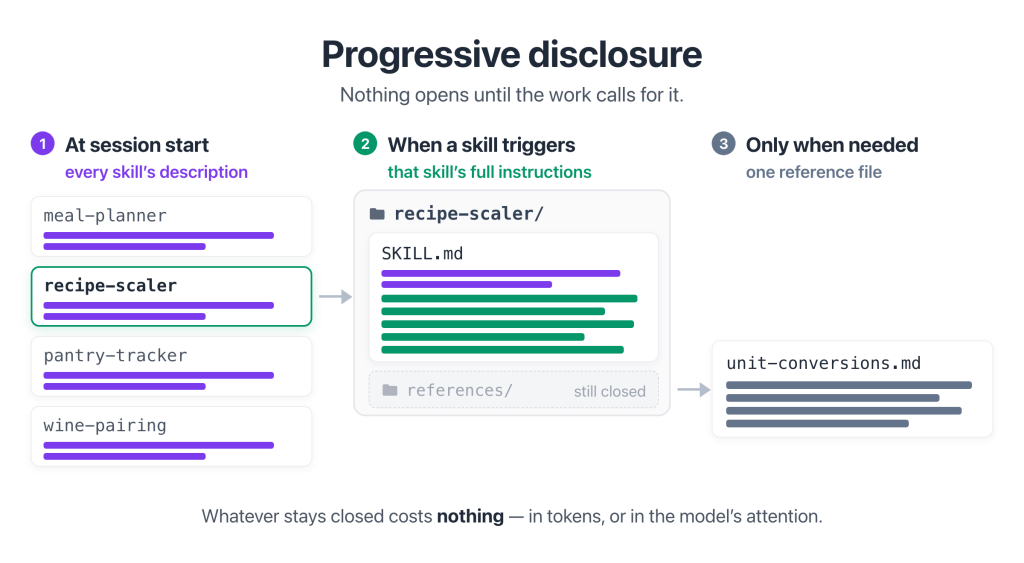
The three layers of progressive disclosure — descriptions at session start, full instructions on trigger, and a single reference file on demand
It’s useful to design skills with an awareness of progressive disclosure for three reasons:
- Finite attention. Everything loaded into a conversation competes for the model’s attention, and a relevant instruction buried in tens of thousands of words is easy to miss. This is called “context rot” or “context degradation”. Keeping the working context lean keeps the AI focused and minimizes the likelihood of relevant context being forgotten.
- Token cost. AI usage is measured in tokens (roughly, chunks of words), and whatever a skill loads, you pay for its length in every conversation where it loads.
- Interpretation drift where you need precision. The more you ask the model to interpret, the more room there is for confident-but-wrong output. That’s tolerable in a brainstorm and dangerous where the answer has to be exact. This is why I use AI to make core decisions, but then pass those decisions to a mechanistic process, like a Python script, to translate those decisions into exact code, such as XML, before inserting it as schema into a FileMaker file.
A Skill, Instructions, or Just a Prompt?
You might ask, how is a skill different from the instructions you can attach to a project, or from simply telling Claude what you want at the start of a conversation?
The difference is when it loads, and how long it lasts. A prompt applies to the conversation you’re in and goes no further. Project instructions — a CLAUDE.md file in Claude Code, or the instructions attached to a project in Claude Chat — are always in view, carried by every message whether they bear on the moment or not. A skill sits between the two: its description is always in view, but its contents load only when a request matches. And once they load, they stay in the conversation for the rest of the session — which is exactly why it matters that they load only when they are needed.
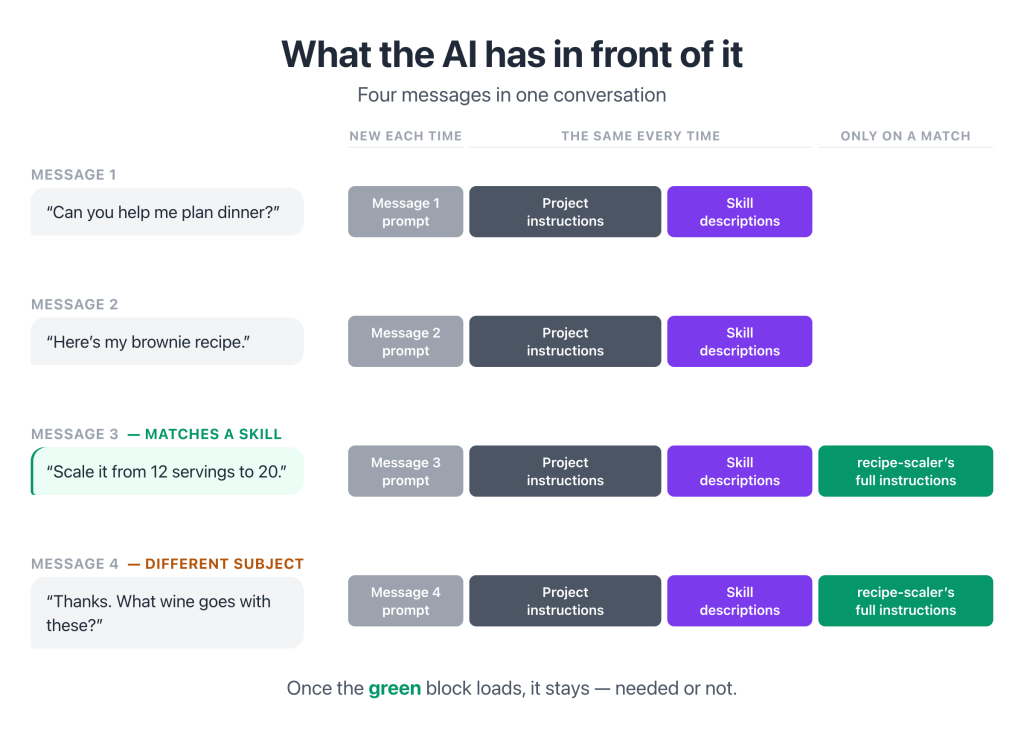
Three ways to guide the AI — a prompt lands in one message, project instructions are carried by every message, and a skill keeps its description always in view while its full instructions load only when a request matches
Another question to ask is, if a skill is basically just a markdown file with some instructions, what keeps your project from being one?
Location, location, location. A SKILL.md file sitting in an ordinary folder is inert – nothing scans it, nothing reads its description, so nothing ever decides to load it. It becomes a skill when it sits where the tool looks for skills.
In practice the choice is simpler than it sounds. If something applies to everything you do in a project, it belongs in project instructions. If it applies to one kind of task, when that task comes up, make it a skill.
This difference matters more as you add more of them. Ten sets of standing project instructions all load into every conversation, competing with each other and with the request you actually made. Ten skills only cost you ten short descriptions, and only the one you need loads its full instructions.
The Design Spectrum: From All-in-One to Switchyard
Let’s look at a couple of ways we can design an AI skill. Picture a spectrum.
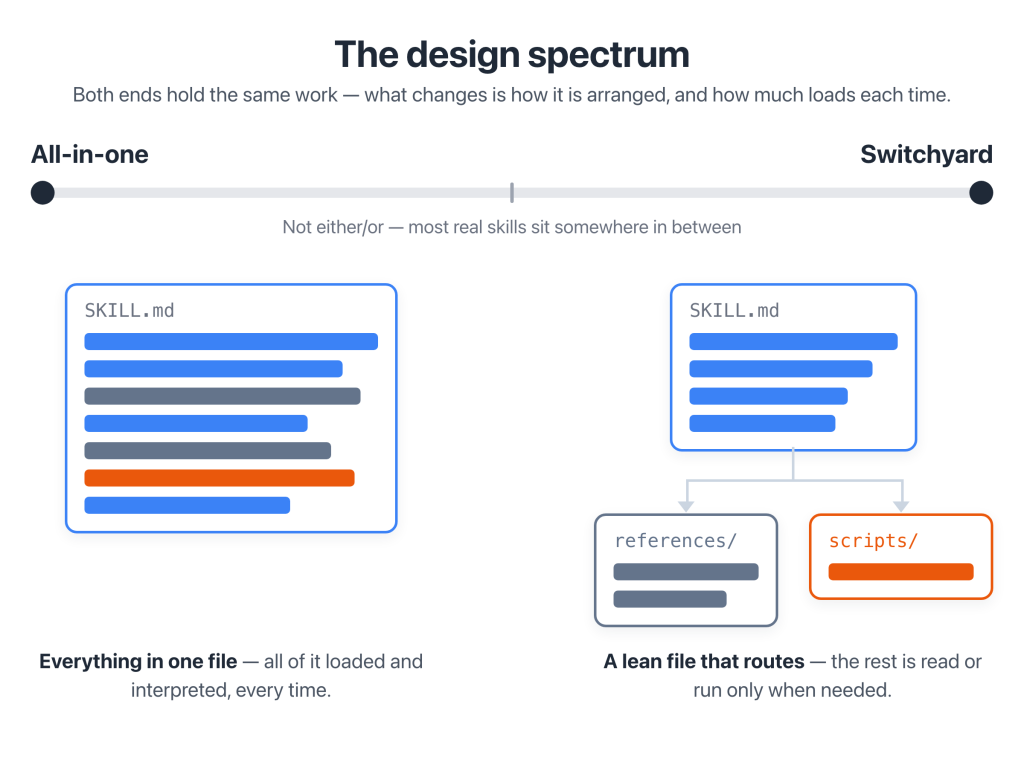
At one end is the all-in-one skill file, everything in a single SKILL.md. This is quick to build and sometimes, for a small skill, that’s all you need. But if you keep adding to the skill, making the body longer, the actions and guidelines more involved, it will start to run into all three pressures: it crowds the context, you pay for the whole file on every use, and it relies on interpretation even for steps that ought to be exact.
At the other end is what I like to call a switchyard: a lean skill file whose main job is not to contain the answer but to act as a routing station. The only job of the skill in this approach is to recognize the request, judge what it needs, check only the reference material it needs, and, most importantly, hand the action off to a tool that generates exact code.
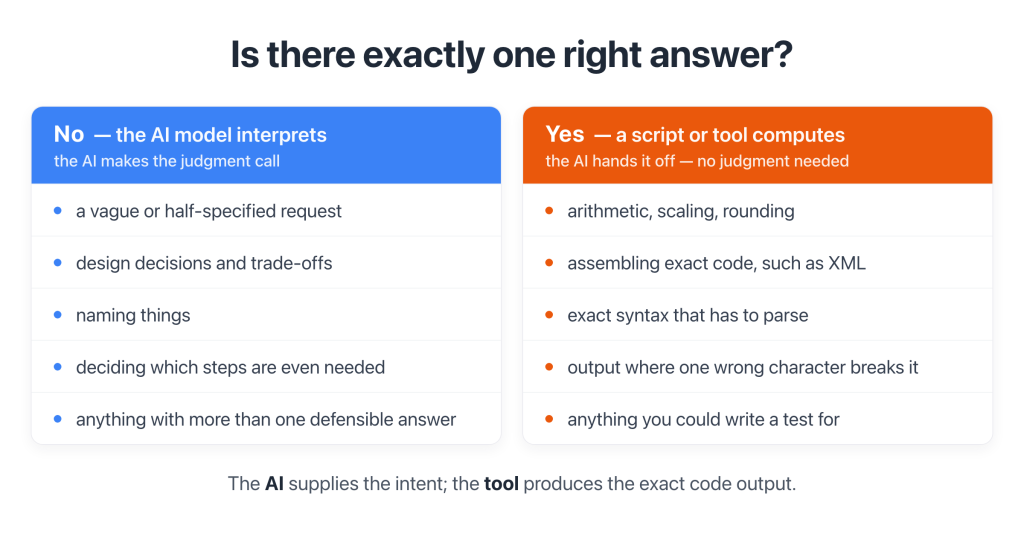
Interpretive work — a fuzzy request, a design decision — is what the model is good at, and a skill should handle that part. When a step has a single correct answer, such as assembling exact XML, the skill hands it to a script in its scripts/ folder: the model supplies the intent, the tool produces the exact code output. Wim Decorte and Mislav Kos of Soliant have written several excellent articles on this design approach.
I want to emphasize that these are two examples on either end of a spectrum. It’s not an either/or choice. A skill design can fall somewhere in the middle. Often, in its earliest stages, we will tend to create a skill as an all-in-one design. But very quickly, as we expand the skill and it becomes more complex, we will want to restructure it in the direction of an efficient switchyard design. That has been the arc of most skills I’ve built. None of them started as switchyards, but the more they grow in complexity and daily use, the more likely I am to move them toward a switchyard design for efficiency and clarity.
Building a Skill
Let’s make this concrete with the recipe scaler from earlier. I’ve deliberately chosen a non-FileMaker skill for simplicity.
The structure of a SKILL.md file is simple enough that you can write it out by hand, but in practice it’s usually easiest to describe the skill you want and let Claude generate it.
In fact, Anthropic has a skill-creator skill whose entire job is to help you create other skills. It interviews you about the task, sets up the skills package folder, and drafts the frontmatter and instructions for the SKILL.md file.
Your prompt to build a skill might look like this:
Create a skill called recipe-scaler. When I give it a recipe and a new serving count, scale the ingredient quantities, convert between US and metric when asked, and flag anything that doesn’t scale proportionally, such as baking times and pan sizes. Keep SKILL.md lean, and put the unit-conversion tables in a reference file.
Once the skill is created, install it (see below) and test it. Start a fresh conversation and make a natural request —
Here’s my brownie recipe, scale it from 12 servings to 20.
Phrase it the way you’d actually ask, not quoting the skill’s name. Confirm the skill engaged (the AI’s inline notes indicate when a skill has been invoked) and confirm the output is right. Then try a request that should not trigger it, like a question about substituting butter, and confirm it stays quiet. A skill that fires on the wrong requests is as much a defect as one that never fires.
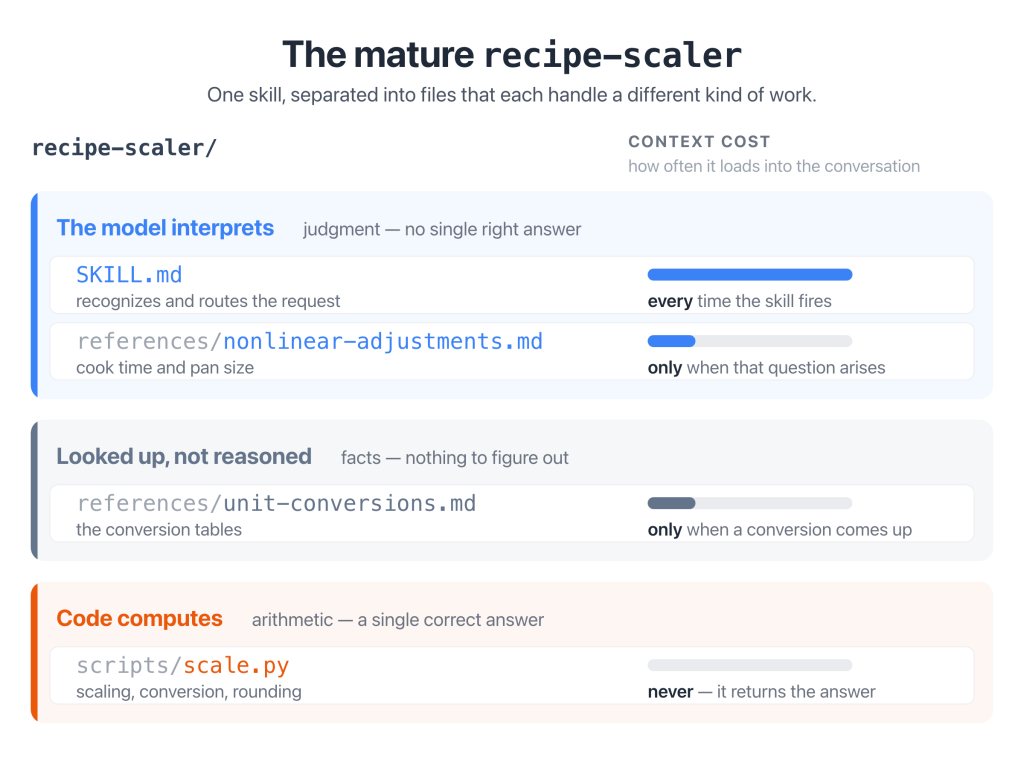
A first version is usually built as one capable file, and if all we ever ask is to double a recipe, that’s fine. The design spectrum shows up as the skill grows. In a more complex version of the skill the conversion tables would logically go in the skill package’s references/ sub-folder, so a plain “halve it” no longer requires you to load the conversion reference. The judgment calls about baking time are written out as plain guidance, because there is no formula that would get them right. And the arithmetic would naturally be separated out into a small Python script in the scripts/ sub-directory (because “⅓ cup times 1.5” is the kind of calculation a language model will confidently get wrong, whereas a five-line script never will).
Since it’s a judgment call and not a calculation, let’s look at how that would work. A reference file named nonlinear-adjustments.md might hold something like this:
## Cook / bake time
- Time scales weakly and unpredictably. Do not multiply it.
- Keep the temperature the same; check for doneness starting near the
  original time and extend as needed.

## Pan / pot / dish size
- Volume scales with the factor, so the vessel must change.
- A deeper fill changes timing and evenness — for baked goods, prefer a
  larger footprint over a deeper pan.

## Leavening (baking soda, baking powder, yeast)
- Scales sub-linearly. When scaling up a lot, increase cautiously — often
  75–90% of the linear amount — and rely on the recipe's texture cues.
None of that is calculation. It’s the accumulated experience of somebody who has scaled a lot of recipes and knows where the arithmetic stops being trustworthy. Claude might well volunteer some of it unprompted. The reason to write it down is that it stops being a matter of chance: the guidance is there every time, worded the same way, for everyone using the skill, in every session — rather than depending on how the question happened to be phrased that day. That is most of what a skill buys you.
It also shows where a skill should grow sideways rather than split in two. Scaling brownies and scaling a casserole are the same job with different knowledge behind them, so they belong in separate reference files, or separate sections of one. Two separate skills, however, would leave you with two descriptions competing to answer the same request — the overlap problem noted earlier, which can cause the skills to fire unpredictably.
All of this gives a more complex file structure for our recipe-scaler skill package:
recipe-scaler/
├── SKILL.md                      ← recognize the request and route it
├── references/
│   ├── unit-conversions.md       ← conversion tables, loaded only when needed
│   └── nonlinear-adjustments.md  ← cook time and pan size, kept as judgment
└── scripts/
    └── scale.py                  ← exact math: scaling, conversion, rounding
Installing a Skill
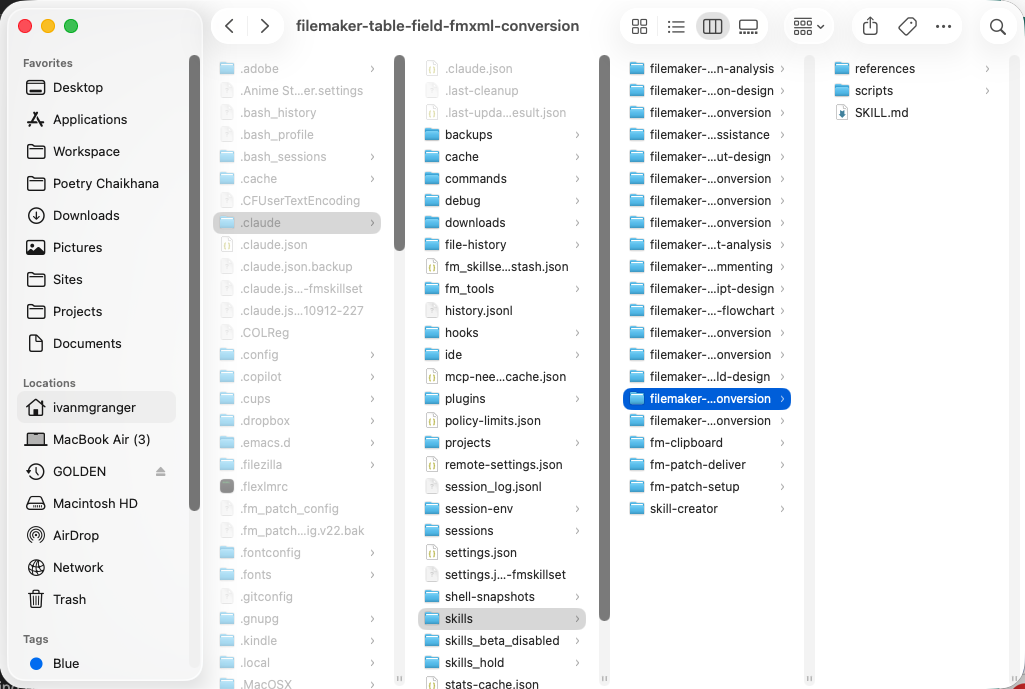
Installing a new skill is simple. We just need to know where Claude will look for the skill package (that is, the skill folder containing the SKILL.md file and any associated references, scripts, etc.).
There are really two questions here: where the skill comes from, and where it goes.
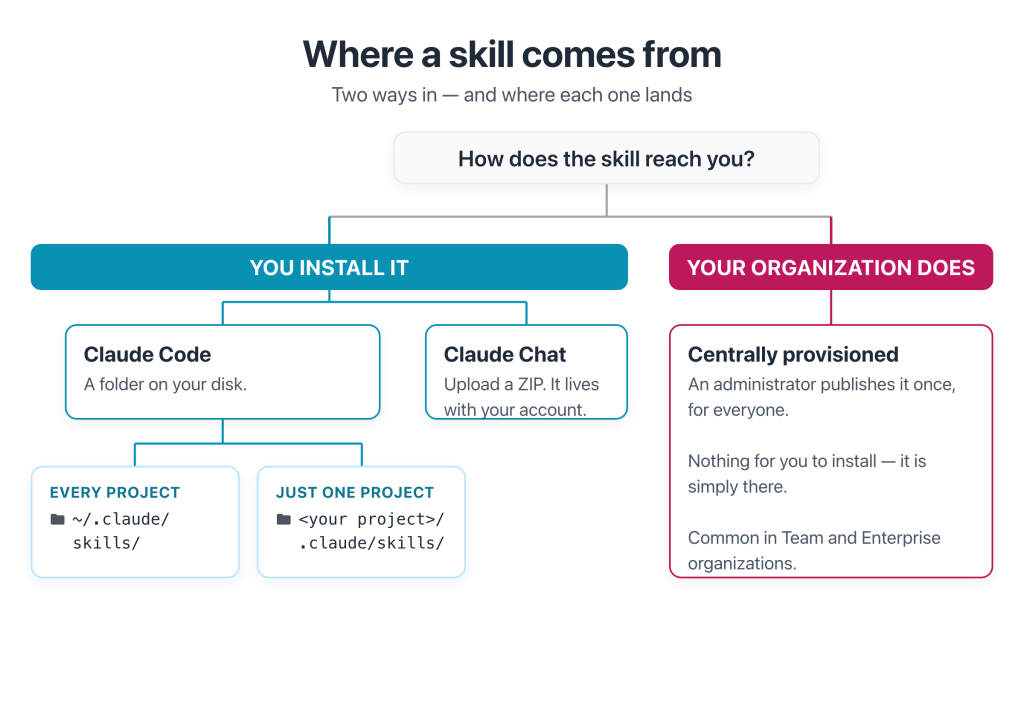
Most of this article assumes you’re installing a skill yourself, but that isn’t the only route. In a Team or Enterprise organization, skills can be published centrally by an administrator, so they simply appear for everyone rather than being installed one machine at a time. For a team with house conventions to enforce, that is often the better model — the standards arrive with the tool, instead of depending on each developer to set them up. Claude Code has a related route in plugin marketplaces, which we’ll also look at in a moment.
A note on skill precedence and overlap: if your organization provides a skill and you already have one by the same name, the organization’s version takes precedence. Skills that arrive as part of a plugin are kept separate under that plugin’s own name, so they never compete with yours at all. Where confusion is most likely to occur is when two skills with different names do similar things. Nothing arbitrates those, so the skill descriptions decide. If a request keeps calling the wrong skill, you will need to sharpen the skills’ descriptions or possibly disable the unused skill.
Adding Skills in Claude Code
These steps assume Claude Code is already installed and running on your machine; if it isn’t, the getting-started links in Resources will take you through it.
- Location:
- All projects — put the folder inside your own home folder, at ~/.claude/skills/recipe-scaler/, and the skill is available in every project. (~ is shorthand for your home folder: /Users/yourname on Mac, C:\Users\yourname on Windows.)
- One project only — put the folder inside that project’s own folder, at <your project folder>/.claude/skills/recipe-scaler/.
- Note: To see hidden directories like .claude, type Cmd-Shift-. (period) on Mac. On Windows 11, open File Explorer and choose View → Show → Hidden items.
- Confirm the folder contains SKILL.md and that the folder name matches the frontmatter name.
- If the skills directory itself is brand new (your first skill), start a new session; a directory that didn’t exist at session start isn’t seen until the next one. After that, Claude Code picks up added or edited skills mid-session.
- Confirm the skill is listed among those available (the /skills command shows the inventory).
- Test it with a naturally phrased request, and confirm it is correctly triggered.
The /skills inventory in Claude Code, listing installed skills with their descriptions
Step 5 deserves emphasis, because a skill can quietly fail to fire. If the description doesn’t match how you actually phrase your requests, the model simply doesn’t use it, and nothing tells you so. When that happens, the fix is almost always in the description (which defines triggering language), not the instructions themselves.
Adding Skills in Claude Chat
In Claude Chat, skills aren’t tied to a folder on your disk. You upload them, and they live with your account rather than with a project.
- Enable code execution. Skills depend on it. On Free, Pro, and Max plans you’ll find the switch in Settings → Capabilities. On Team and Enterprise it’s set at the organization level, so if the Skills option appears greyed out, you’ll need to check with the person handling your AI account.
- Package the skill as a ZIP. Compress the skill folder itself, so the folder sits at the root of the archive rather than nested inside another folder. SKILL.md and any references/ or scripts/ come along with it.
- Upload it. Go to Customize → Skills, click the +, choose Create skill, then Upload a skill, and select your ZIP. Claude automatically expands the archive on upload. You don’t have to unzip the file yourself.
- Turn it on and test it, the same way you would in Claude Code — a naturally phrased request, then a look at Claude’s thinking to confirm the skill was actually invoked.
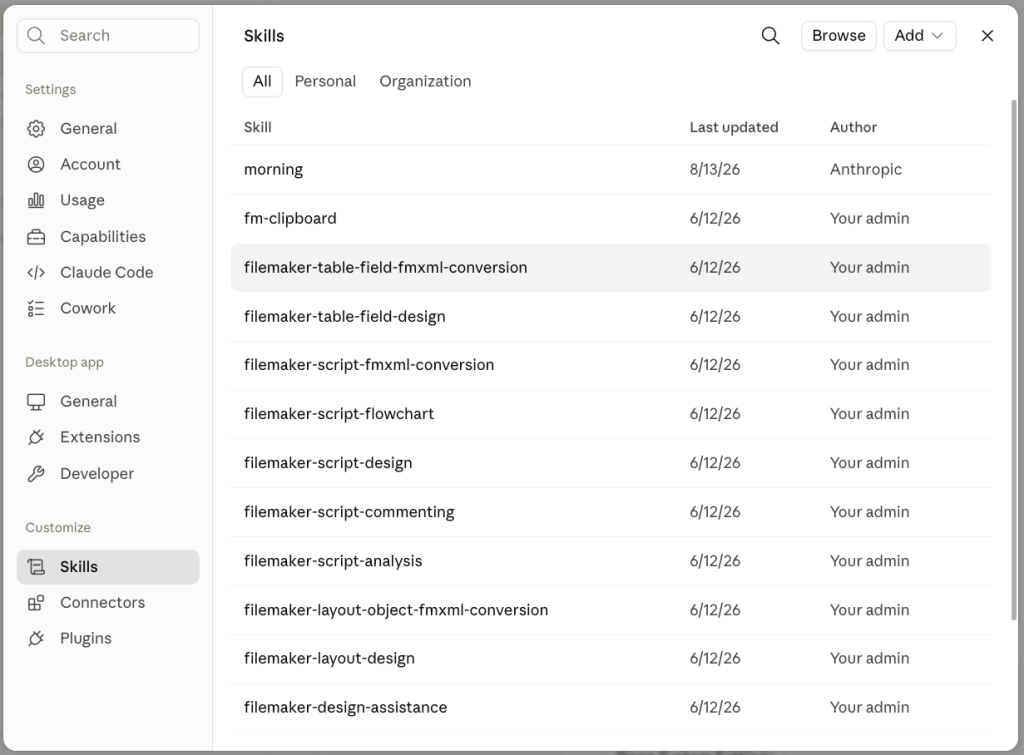
The Customize → Skills panel in Claude Desktop, showing the skills list
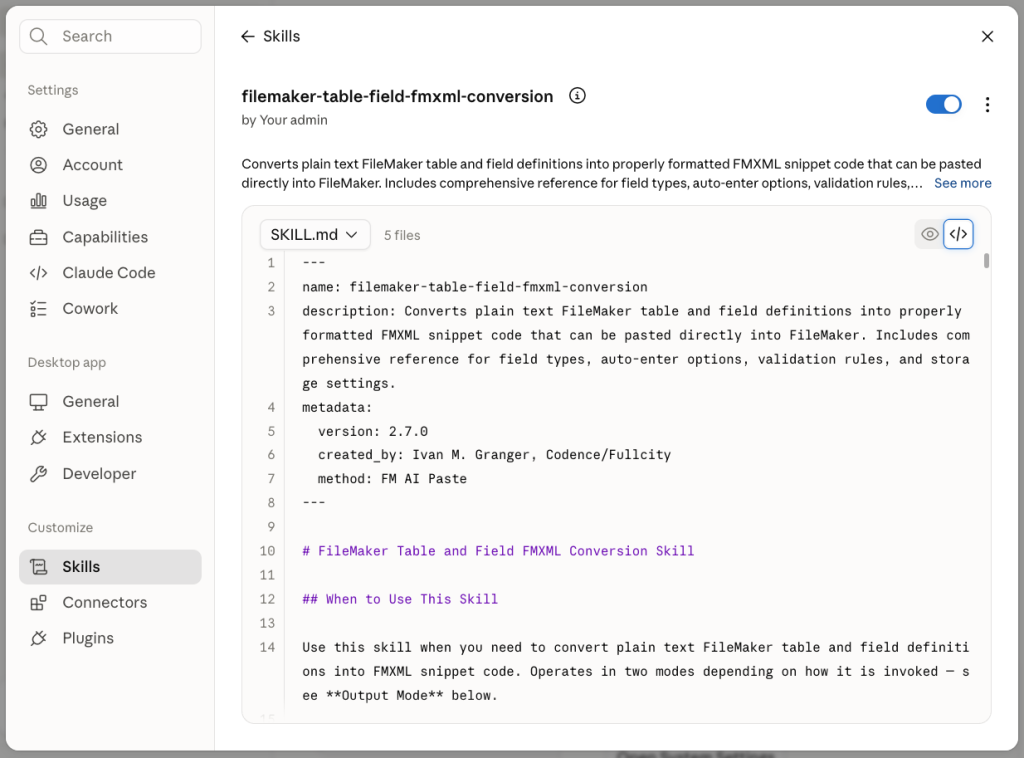
A skill you upload this way is private to your own account — nobody else can see it or use it. That is the difference from the centrally provisioned skills described earlier, which an administrator publishes once so that everyone on the team has them.
A couple of differences between skills in Claude Chat and Claude Code worth knowing:
- Skills for Chat are held to tighter limits: a name of up to 64 characters and a description of up to 200. That’s short enough that a description written comfortably for Claude Code may need trimming on the way in.
- A skill’s scripts do run in Chat, but they have no view of your file system. So a skill that reasons, writes, and formats will generally work in Chat. A skill that has to work with something on your machine — your clipboard, a file on disk, the FileMaker Upgrade Tool — needs Claude Code, where its scripts have a machine of yours to run on.
Finding Skills Other People Have Built
Anthropic maintains a public repository of example skills on GitHub (github.com/anthropics/skills), including skill-creator itself, and it’s worth browsing to see how well-made skills are put together. Claude Code also supports plugin marketplaces — curated collections you can browse and install from within the tool, with skills often bundled inside plugins. Beyond that, GitHub search turns up a growing number of shared skills, and the FileMaker community has begun producing its own.
An important caution. Before you trust a skill from an unfamiliar source, read what’s in it — the instructions as well as any code. A package’s scripts/ code runs on your machine, and even a bare skill file is instructions that an agentic tool like Claude Code will act on, directing real actions there. Use the same caution you’d apply to any downloaded software. A good approach is to ask Claude to read it first and tell you what a skill and its tools do and what they touch before loading them.
Improving a Skill Over Time
Skills are often works in progress, and we usually want to improve them over time.
Pay attention to the moments a skill disappoints you. If it didn’t trigger when it should have, sharpen the description. If you find yourself correcting the same thing in its output twice, move that correction into the instructions. If the skill has drifted into doing two jobs, split it; two focused skills trigger more reliably than one broad one.
Keep the version number accurate, and keep a couple of standard test requests you re-run after each round of edits, including one that shouldn’t trigger. Just as with database development, developing skills should follow a basic rhythm — use it, notice the friction, adjust, repeat. Except that updating a skill is often much easier, as simple as a prompt to Claude to make a described change.
Why Skills Matter for FileMaker Work
Bringing this back to the work we actually do, a skill lets you codify the FileMaker knowledge that usually lives in a senior developer’s head — naming conventions, error-handling patterns, layout design preferences — and have it applied consistently. The standards aren’t in anyone’s memory to be forgotten between sessions; they’re in the skill. Shared across a team, a skill library carries accumulated craft.
The range is wider than schema generation, though. A few kinds of skill a FileMaker developer might build:
|
Example skill |
What it does |
|
Naming conventions |
applies house rules for field, script, table-occurrence, and layout names |
|
Script-design conventions |
bakes in error-handling patterns, structure, and commenting standards |
|
Documentation |
turns a solution into readable docs, a data dictionary, or release notes |
|
Standards review |
checks a script or schema against your conventions and flags deviations |
|
Requirements drafting |
walks a new module’s scope into a consistent, buildable spec |
|
Pre-release checklist |
steps a solution through your QA and deployment checks before it ships |
|
Client-specific context |
carries one client’s vocabulary and rules so work stays consistent |
|
Onboarding |
encodes “how we build here” so a new developer — or the AI itself — follows house practice from day one |
|
Knowledge retention |
quizzes you on what you’ve built, spaced over time, so it sticks |
(I picked up that last idea from Todd Geist, who described using a skill to quiz himself on material he wanted to retain — a skill can be for learning the work, not only producing it.)
One FileMaker-specific technique: Claris now publishes its entire help documentation in markdown, with an index at help.claris.com/llms.txt (covered in the previous article). For anything that needs a precise reading of FileMaker behavior, a skill’s reference file can point directly at the relevant help page, so the model reads current official documentation rather than its training memory.
Where a Skill Is the Right Tool — and Where It Isn’t
A skill is, at its core, a set of instructions that the AI model interprets. We want a skill in place where decisions or selections are made, like designing a script, from choosing the script steps down to which attributes and parameters should be set for each one of those script steps. A skill is a poor fit where interpretation or guess-work is the enemy, as with byte-exact output and verification.
Do Skills Work with Other AI Tools?
Largely yes. In December 2025, Anthropic published the skill format as an open standard called Agent Skills (agentskills.io), now stewarded under a neutral industry foundation, and adoption moved quickly: OpenAI’s Codex, Google’s Gemini CLI, GitHub Copilot, Cursor, and VS Code are among the dozens of tools that now read the same SKILL.md folders. A skill you build for Claude is, in format terms, already portable — same folder, same frontmatter, same markdown body — though a package’s scripts still depend on what the host tool lets them execute.
What varies is everything around the file: where skills live on disk, each tool’s own project-instruction file (CLAUDE.md for Claude Code, AGENTS.md for Codex, GEMINI.md for Gemini CLI), and the conveniences layered on the shared core. Moving a skill usually means relocating the folder and re-testing that it triggers, but not rewriting it.
The general principles of skill design also apply: progressive disclosure, a specific trigger, splitting interpretive work from exact work, testing whether a skill fires — these reflect how large language models handle attention and instructions generally, and they’ll serve you on any platform.
Skills Beyond the Work
A side note: everything so far has treated a skill as a functional utility. But we can also understand a skill as a set of intentions, which are then activated when we want them. Nothing restricts that to FileMaker schema and scripts. Skills don’t have to be work-related at all.
A skill can hold a practice you care about and highlight it for you: a short reflection that opens or closes the working day. It can act as a conversation coach for the new language you’re learning. It can geek out with you about your comic book collection. It can keep you up to date on an important news topic. Or it can remind you to walk your dog each morning.
Used this way, the AI becomes less a machine you extract work from and more a collaborator that helps you organize your life.
A skill is really just a way to trigger specific interactions with AI. So I encourage us all to think creatively about new and more human ways to use skills and AI, not purely in transactional or tool-like terms.
What’s Next
Once you understand the basics of how skills work, you have options. Build your own. (It’s easy!) Get skills from other developers. Or simply work with a clearer picture of what the tools around you are doing.
Skills are the foundational piece. Once they’re comfortable, the natural next question is how to arrange several of them, with deterministic tools and a bit of orchestration, into something you can rely on for complex, repeatable work. That’s when we start talking about an AI harness — which I may explore further in a future article.
A skill is a plain-text file describing how you want a job done — and that turns out to be most of what an AI needs from you.
We all have precise knowledge and preferred ways of doing things. AI Skills are a natural repository for us to outline our knowledge and processes, allowing AI to become a more effective and personalized assistant.
Resources
Getting started with Claude Code
- Anthropic — Quickstart (install and first session) — code.claude.com/docs/en/quickstart
- Anthropic — Get started with the desktop app (Claude Code with no terminal required) — code.claude.com/docs/en/desktop-quickstart
- Anthropic — Terminal guide for new users (if you have never worked at a command line) — code.claude.com/docs/en/terminal-guide
Skills
- Anthropic — What are skills? — support.claude.com
- Anthropic — Use skills in Claude — support.claude.com
- Anthropic — How to create custom skills — support.claude.com
- Anthropic — public skills repository (including skill-creator) — github.com/anthropics/skills
- Anthropic — Skill authoring best practices — platform.claude.com
- Extend Claude with skills (Claude Code) — code.claude.com/docs/en/skills
- Agent Skills — the open skill-format specification — agentskills.io
- Simon Willison — Claude Skills are awesome, maybe a bigger deal than MCP — simonwillison.net
FileMaker and background
- Soliant Consulting / Mislav Kos — Claris Docs Skills Plugin for AI Access to FileMaker — soliantconsulting.com
- Claris documentation in Markdown — help.claris.com/llms.txt
- Markdown — markdownguide.org
- Earlier in this series: FMXML and the Clipboard Tool, The Paste Method, The Patch Method, What’s New in FM 26 for AI Development
Glossary
|
Term |
Definition |
|
Agent |
An AI given a job to carry out with some independence, along with the skills and tools to do it. |
|
Agent Skills standard |
The open specification for the skill format (agentskills.io), published by Anthropic in December 2025 and adopted across major AI coding tools. |
|
AGENTS.md / CLAUDE.md |
Project-level instruction files that set standing behavior for all work in a project, read at session start. Distinct from skills, which load on demand. |
|
Claude Chat |
The conversational interface for Claude, at claude.ai or in the desktop app. |
|
Claude Code |
The file-system, shell, and tool-equipped version of Claude — as a command-line tool, a VS Code extension, a tab in Claude Desktop, or on the web at claude.ai/code. Requires a paid plan. |
|
CLI (command-line interface) |
A program operated by typed commands in a terminal rather than through windows and buttons. |
|
Context window |
The total material an AI model can hold in view at once — the conversation, loaded files, and instructions combined. |
|
Context rot |
The degradation in a model’s accuracy as its context fills with material competing for attention. |
|
Deterministic tool |
Code that produces exactly one correct output for a given input, invoked by a skill for the parts of a task that must be exact. |
|
Frontmatter |
The metadata block at the top of SKILL.md, written in YAML: required name and description, plus optional labels such as license and a metadata block for nested keys like version and author. |
|
GitHub |
The dominant web platform for hosting and sharing code repositories, including public skill collections. |
|
Harness |
A structure that arranges skills, deterministic tools, and verification checks into a dependable AI workflow. The subject of the next article. |
|
LLM (large language model) |
The neural-network technology behind AI assistants like Claude, ChatGPT, and Gemini. |
|
Markdown |
A plain-text convention for formatted documents (# headings, – lists). Readable in any editor; the common language of documentation and AI instructions. |
|
MCP (Model Context Protocol) |
A standard for giving an AI structured access to external systems. An MCP server (casually, “an MCP”) is a connector built to that standard — one structured route among several, alongside direct command-line and script access. |
|
Plugin |
In the Claude ecosystem, a packaged bundle of skills, commands, and connections installed as a unit. (Distinct from a FileMaker plugin.) |
|
Plugin marketplace |
A curated collection of plugins and skills browsable and installable from within Claude Code. |
|
Progressive disclosure |
Loading the minimum context at each stage — descriptions first, instructions on trigger, references only as needed. |
|
Prompt |
The request or instruction you give an AI model. |
|
Repository (repo) |
A versioned folder of code or documents, typically hosted on GitHub. |
|
Skill |
A packaged set of instructions, optionally with references and code, that an AI applies when a request matches its description. |
|
SKILL.md |
The Markdown instruction file at the heart of every skill (the skill file). |
|
Skill package |
The whole skill folder: SKILL.md plus optional references/, assets/, and scripts/. |
|
Switchyard |
A lean skill file whose job is to recognize the request, judge what it needs, route to the right reference, and hand exact steps to code. |
|
Token |
The unit AI usage is measured in — roughly a short word or piece of a word. Everything loaded into context is paid for in tokens. |
|
Version number |
A dotted number (“1.0”, “1.2”) tracking a skill’s evolution — conventionally kept as a nested key in the frontmatter metadata block. |
|
YAML |
The simple label: value text format used for frontmatter. Indentation is structural. |
Subscribe to get the latest in your inbox.

Built with you in mind
Speak to one of our expert consultants about making sense of your data today. During
this free consultation, we'll address your questions, learn more about your business, and
make some immediate recommendations.