FileMaker 26 arrived on June 9, 2026. Let’s take a look at which changes and new features affect how we can use AI to build and modify FileMaker files. I will especially focus on changes relevant to the clipboard-based Paste method and the FM Upgrade Tool-based Patch method covered in the previous articles in this series.
I want to first clear up some confusion: FileMaker 26 does not yet include native agentic coding — the workflow Claris has been demonstrating, where you describe a feature and an AI builds it directly in FileMaker. Those tools are coming “later this summer,” but they aren’t here yet. What did ship is the groundwork underneath it: a reworked Save a Copy as XML and an upgrade tool that can write more back into a file and can now even build a limited file from scratch. Further, the command-line tools are now far easier to install, the documentation has been reformatted for AI, and a handful of schema features aimed at AI utility have been added. Those features may not sound flashy at first, but when we understand their implications there is reason for real excitement.
Paste: No substantial changes (and that’s good news)
The AI-to-clipboard method, or FM AI Paste, is the most widely used method for creating FileMaker code with AI. It is the technique used by most of the AI-assisted FileMaker tools appearing now. The core workflow remains unchanged in FileMaker 26, since the clipboard mechanism itself is unchanged. Scripts, tables and fields, and layout objects all paste exactly as they did before.
The Paste method, and the ecosystem of AI-assisted tools built on the clipboard behavior, continue to work as before.
There are, however, a couple of changes relevant to the Paste process worth noting, including corrected XML tag spellings affecting a few new AI script steps, and also a fix to an issue when pasting custom menu sets on Windows. Since they are fairly specific, I describe them later in the Briefly Noted section.
Patch: Major enhancements
There are significant updates in FileMaker 26 that affect the FM AI Patch method.
Reading the structure — Save a Copy as XML
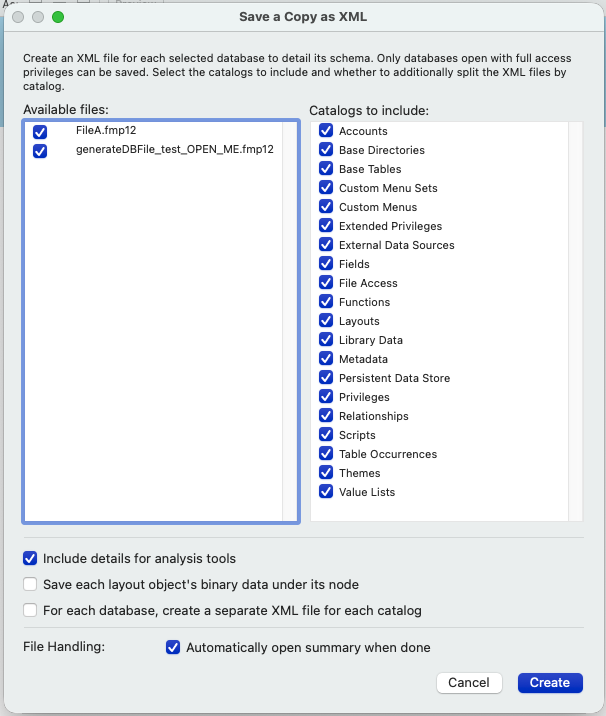
Using the Patch method of development, the AI needs a way to read the file to get IDs and to check existing code. The easiest way for it to read the file is through Save a Copy as XML (SaXML) — the command that writes a file’s structure out as XML. In FileMaker 26 this got an overhaul that Claris is calling the “XML 2.0 grammar.” The new SaXML gives us much more control over what comes out:
- Export individual catalogs. A catalog is FileMaker’s internal collection of one class of schema object — all the scripts, all the fields, all the relationships, and so on — holding their full definitions. You can now export just one catalog, any combination, or the whole file.
- Export several files at once, with a summary file listing what was produced.
- Include Table View column details and sort order.
- Include extra analysis detail. An optional “Include details for analysis tools” setting adds a
DDR_INFOblock — the full text of each script step plus calculation-reference details — useful to analysis tools, but it makes the export significantly larger, so leave it off when you want lean context.
- Get the result in UTF-8 instead of UTF-16 LE, which removes a decoding step the tooling used to have to handle.
These granular export controls mean Save a Copy as XML works much more like the Database Design Report (DDR). The selective export is what matters most to AI. Handing a model just the fields and relationships of a file, rather than the entire definition, means a smaller and cheaper chunk of context on each pass — and layouts in particular are huge, so leaving them out when you don’t need them keeps the model focused.
Also worth noting is that the FM Developer Tool (see below) has been updated to support these new content controls.
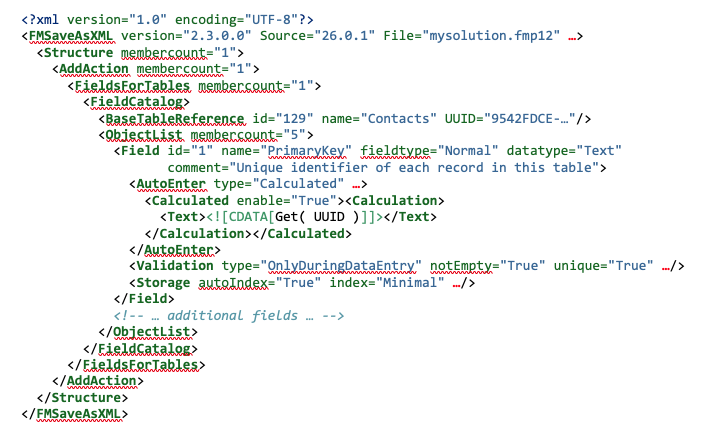
For example, exporting just the Fields catalog with a CLI command (generated by an AI)—
$ FMDeveloperTool --saveAsXML mysolution.fmp12 Admin "" -cl FieldCatalog -t fields.xml
—produces an XML output that only includes the FieldCatalog and leaves out other catalog content—
Writing the structure — the FM Upgrade Tool and generateDBFile
Save a Copy as XML reads the structure; the FM Upgrade Tool writes it. The FMUT is a command-line tool that takes a set of changes written as an XML patch file and applies them straight into a closed FileMaker file — requiring no manual paste. (See my earlier FM AI Patch article for an in-depth exploration of this technique.) FMUpgradeTool v26 ships with FileMaker Server 26.
It’s worth being clear about who does what here. When I say “the AI,” I mean software driving these command-line tools on its own — reading the file, writing the patch, applying it, reading back to verify — not you typing each command by hand.
New: Building a file from scratch — generateDBFile
The most notable change to the FM Upgrade Tool is the new generateDBFile command, which creates a brand-new .fmp12 file directly from XML. This is a huge step forward! Give it a full description of a file — tables, fields, relationships, scripts, value lists, custom functions — and it produces a new file structure built with the schema. I say structure deliberately, rather than simply calling it a new FileMaker file, because in one crucial way the result isn’t identical to a file you’d build by hand in FileMaker Pro — and that difference is important.
The XML input used by this function does not necessarily have to come from a Save as XML export, but it does need to follow the same XML grammar. You — or an AI — can author it directly if you want to describe a file that doesn’t exist yet.
It helps to start with understanding what generateDBFile was made for. Reading the documentation, the command appears designed for a specific, practical job: creating the destination file for a data migration — a clean, correctly-structured target that the FileMaker Data Migration Tool then fills with records moved from an older file. In that role schema fidelity is everything and the interface is beside the point, because the developer builds out the layouts afterward. The file is a scaffold, and generateDBFile builds that scaffold reliably.
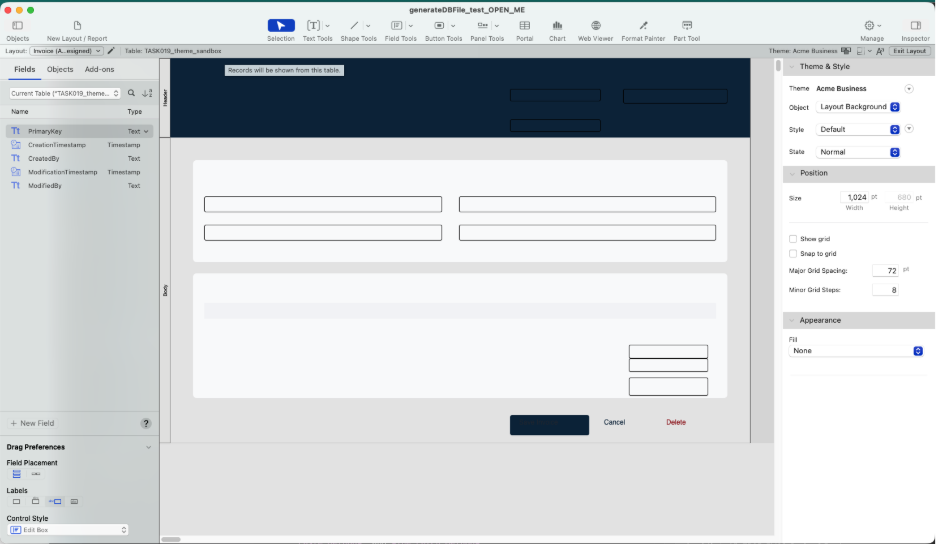
That origin explains what works today and what doesn’t. In my testing the schema comes through cleanly — tables, fields, relationships, and scripts all hold. Layouts are where it stops short. Using generateDBFile to place a field on a layout doesn’t work — the field comes out empty: the box is there, but it doesn’t actually display the field on the layout.
Confusingly, reading the resulting file’s XML, the field reference appears to be there, but the field doesn’t render on the layout. A follow-up patch on the same file produces the same results: empty boxes on the layout. In other words, we can’t reliably patch layout objects like fields on a layout; that can only be done manually with a file created by generateDBFile.
You can watch this happen — generate a file from a full XML description:
$ FMUpgradeTool --generateDBFile -src_path mysolution.xml -force -v
Read the new file back, and the layout’s field reference looks perfectly intact if you run a new saveAsXML command:
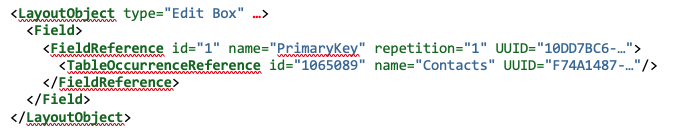
Yet on the layout itself, the box is empty. That’s especially frustrating: the failure is invisible to the read-back — the very check we rely on to verify a patch — and shows only when you open the file:
As promising as this new feature is, we can’t use it in conjunction with AI to build an entire FileMaker file from scratch — yet.
The workaround isn’t onerous, however. For now, if we want to build a new file using the FM AI Patch method, we can’t use generateDBFile. Instead, we must manually create a minimal starter file in FileMaker. From that point we can patch in all elements, including layout objects. It’s one manual step at the start, not a major roadblock.
We’re close. If Claris resolves the patched field binding issue for files created with generateDBFile the picture changes completely: an AI will be able to take a written or even spoken solution spec, write the full XML, hand it to generateDBFile to create a file, run a few rounds of patches, and produce a finished, usable file!
Other FM Upgrade Tool limitations
I should point out some additional limitations in the FM Upgrade Tool that are longstanding and haven’t yet been resolved:
- You can append steps to the end of a script directly, but inserting into the middle of one requires a workaround: delete the existing script, rebuild it in XML with the added steps, and add it back with its original ID.
- Similarly, custom functions can’t be edited in place. The whole function must be deleted and re-created.
- Most critically, the FM Upgrade Tool returns silent failures.
- Currently, the FM Upgrade Tool reports that a patch was applied even when it encountered a problem and changed nothing.
That silent failure is the single biggest obstacle between where we are now and an AI workflow that can run on its own. The tool says “patch applied” whether it applied anything or not, so the only way to know what really happened is to read the file back afterward and look for the change. Until the tool returns success and error messages we can trust, every patch has to be verified, not assumed. So, with the Patch method of working with AI, always check results with a new Save as XML.
Having said that, the FM Upgrade Tool is headed in the right direction. Trustworthy success-and-error reporting, together with the layout-binding fix described above and the ability to edit mid-script — these core enhancements would allow the Patch technique to evolve into a truly mature method of building our FileMaker solutions in the future.
ReplaceAction and enclosing objects
One last, smaller improvement worth noting before we move on: per FileMaker 26’s release notes, ReplaceAction now handles group objects — groups, portals, tab controls, button bars, slide controls, and popover buttons. Until FileMaker 26, these could only be changed by deleting and rebuilding them entirely. Being able to edit them in place removes a recurring annoyance for any patch that touches a real, built-out layout.
Code In, Code Out
I have focused on the FM Upgrade Tool because it’s the piece that writes code into a file, but the other half of the AI development loop is reading code back out. For an agentic workflow, we need the FM Developer Tool. Like the FM Upgrade Tool, it’s included with the FileMaker Server installer.
The FM Developer Tool makes Save as XML available in the command line — which is what lets an AI confirm a patch resolved as intended, collect the internal IDs it needs for the next change, and read a file’s current state. FileMaker 26 updated it so its saveAsXML command now mirrors the new Save a Copy as XML options: a -cl argument chooses which catalogs to include, another splits them into separate files, and a switch controls how binary data is stored. The payoff for AI work is that an agent can pull just the fields catalog after a field change, or just the scripts catalog after a script change — keeping each read-back small and handing the next patch exactly the IDs it needs.
For example, reading back just the Scripts catalog after a script change:
$ FMDeveloperTool --saveAsXML mysolution.fmp12 Admin "" -cl ScriptCatalog -t scripts.xml
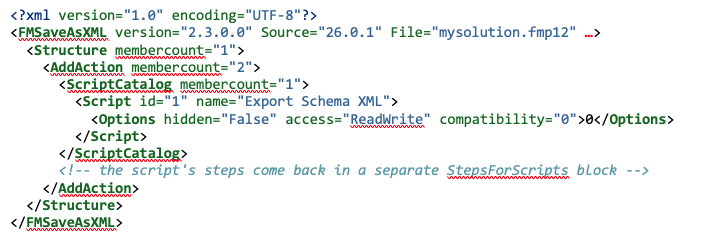
Put the two tools together — the FM Upgrade Tool writing code in, the FM Developer Tool reading it back out — and you have the closed iterative loop the Patch method runs on: patch a change in, read the file back to confirm it, gather what’s needed, and go again — read, write, verify, repeat.
| Tool | Direction | What it does |
| FM Upgrade Tool | Code in | Applies an XML patch to create and modify schema directly in the file |
| FM Developer Tool | Code out | Uses saveAsXML to export the file’s structure as XML to read back and verify |
Tool-only installer
The Patch method has always had an awkward setup requirement: both the FM Upgrade Tool and the FM Developer Tool were only available through a full FileMaker Server install. If you didn’t want the entire server installation and just wanted the command-line tools themselves, trying to grab just the FMUT and FMDT, including their many required support files, was a real archaeological dig. (I know, I tried it.)
FileMaker 26 removes that problem. The Server installer now offers an option to do a tools-only install — just the FM Upgrade Tool, the FM Developer Tool, and also the Data Migration Tool, without requiring a full server install.
Documentation built for AI — Help in markdown
Reading and writing a file’s structure is one thing; helping an AI understand it is another. Claris has republished its entire help documentation in markdown — the plain-text format that has become the common language for feeding reference material to AI models. Every help page now has a Markdown version at a help.claris.com/markdown/… address, and Claris publishes an llms.txt index (and a fuller llms-full.txt) listing all of them.
For example, the error-codes page at https://help.claris.com/en/pro-help/content/error-codes.html becomes https://help.claris.com/markdown/en/pro-help/error-codes.md
- Insert
/markdownafter the domain, drop the/content/segment, and change.htmlto.md.
One odd note: the current version field in each page’s metadata reads “22,” but it appears to contain complete documentation, even for FM 26 features.
With this material now so readily available, we can point a model like Claude at the official Claris docs while it’s doing its work, so it answers from the authoritative reference instead of from memory. That matters most for the small, exact things a model otherwise guesses at. For instance, Set Field and Set Field by Name are two different steps with different internal IDs and structure, and getting that right is the difference between a patch that resolves correctly and one that fails (without error). With the docs in markdown format, a skill or tool can check the official definition of a step or function on demand — which is how we can build tools that actually know how FileMaker’s pieces are supposed to work.
The index an AI can crawl to find the right page:
https://help.claris.com/llms.txt
Briefly noted
A few other FileMaker 26 additions are worth mentioning for AI dev work, though they are less uniquely relevant to Paste and Patch.
- The Persistent Data Store holds named values inside a file’s schema rather than in record data. Useful for storing an app version, a JavaScript library, a fixed AI prompt, add-on configuration. Because those values live in the structure, Save a Copy as XML and the FM Upgrade Tool can reach them.
- Write with the Configure Persistent Data script step
- Read with
GetPersistentData ( name ; instanceID ) - List what’s stored with
ListPersistentDataIDs ( name )It survives cloning, and because it lives in the schema rather than in the data it should carry through data migration as well. One caution: the values show up as plain text in the XML export, so it’s not the place for API keys or secrets.
- SQL gained
FOREIGN KEYsupport inCREATE TABLEandALTER TABLE, so tables and the relationships between them can now be defined in SQL. In other words, we can now create relationships through SQL. Overall, SQL gives us a narrow write path for AI — no scripts, layouts, or custom functions — and the statements have to come in through FileMaker’s ODBC/JDBC interface or a plugin, since the built-inExecuteSQLonly reads. But it’s worth remembering this option is available. One caveat: FileMaker’s SQL dialect has its own quirks, and a model can produce statements that don’t quite match it — especially across complex relationships — so generated SQL needs the same verification as everything else.
- New metadata for AI — field annotations (a description written for a model, separate from the field comment), reachable through the new
FieldAnnotationfunction and through OData, plusBaseTableCommentandFieldDisplayNamesfunctions that expose schema metadata to a calculation.
- Corrected XML spellings, and backward compatibility — several new AI script steps introduced in 2025 had misspellings in their copied FMXML snippet code —
SetLLMAccout(missing the ‘n’) becameSetLLMAccountin Configure AI Account, with similar corrections to the XML for Configure Machine Learning Model, Configure Prompt Template, and Perform RAG Action. This created a backward compatibility issue because FM 26 won’t accept the old code misspellings, so copying one of these steps from FM 22 fails to paste into FM 26. Acknowledged by Claris, being investigated. This matters only when reusing AI-step content authored in FM 22; code generated fresh for FM 26 pastes normally.
- Custom Menu Set copy-paste bug fixed — copied custom menu sets sometimes couldn’t be pasted in the Manage Custom Menus dialog on Windows, now fixed; affecting the same copy-and-paste machinery the FM AI Paste method relies on.
Where Claris is headed
From these updates and further public commitments, we know the direction Claris is moving in: AI not only for working with data, but for building the files themselves.
On the launch livestreams, Rick Kalman described the loop the platform is building toward — a file written out to XML, an AI that reads and edits it, the file rebuilt, and around again as the work needs. He described this capability as “bidirectional serialization deserialization of a FileMaker file into XML,” and called it “a foundational piece of where we’re heading.” Claris has also said its summer agentic launch will include a needed set of reference documents describing valid FileMaker structure.
A few things seem to be taking shape beyond what Claris has officially announced, so these are unconfirmed at the moment:
The agentic tools will likely arrive as their own tools alongside FileMaker Pro rather than built into it.
Claris may be working toward enabling changes to hosted files (rather than the current requirement that a file be closed to apply patches). This raises questions about schema locking and how user actions will be protected. But this will be huge from the AI development point-of-view.
Web-rendered content will become more central to the FileMaker design layer.
Claris has stated that these agentic coding tools and features are planned for “later this summer.”
The file opens up
What FileMaker 26 changes is how much of the underlying code layer we can reach from outside FileMaker Pro, and how reliably — making more of the structure readable and writable, the command-line tools finally easy to install, and a set of features that make a file more legible to AI alongside.
The FM Upgrade Tool isn’t finished. It can still report a success it didn’t deliver, generation from scratch stops short of working layouts, and the fully agentic capability is months away. The most useful thing we can do now is to continue developing and testing these methods, staying honest about the rough edges, and sharing our feedback. We don’t quite have fully agentic development yet — but it’s close. FileMaker 26 laid more of the foundation. These new features, along with the glimpses we’ve had of agentic coding tools coming soon, for the first time let us know that Claris is committed to bringing FileMaker into the AI era. I’m looking forward to exploring the new features further — and seeing what comes next.
Key takeaways
- More of a FileMaker file’s structure is now reachable from outside FileMaker Pro — to read and to write. That’s the release in a sentence.
- Paste is unchanged — the clipboard method, and the tools built on it, carry forward as before.
- The command-line tools are now installable on their own — the FileMaker Server 26 installer offers a tools-only option that only installs the FM Upgrade Tool, the FM Developer Tool and the Data Migration Tool.
- The FM Upgrade Tool write the structure, and the FM Developer Tool reads it back through saveAsXML — creating a loop that agentic AI can use to build, confirm and iterate.
- Code in with the FM Upgrade Tool, code out with the Developer Tool — read, write, verify, repeat.
- The biggest FM Upgrade Tool’s limitation continues to be its silent failure — the tool can report a success it didn’t deliver, so verify every change rather than assume it.
- Generating an entire file from scratch is within sight —
generateDBFilebuilds clean schema today; once layouts and trustworthy reporting follow, an AI can build a file end to end.
- Agentic coding is still ahead — “later this summer,” not in 26.0.
Resources
- FileMaker Soup — 4 new FileMaker 26 paste bugs found during ai2fm R&D (Dimitris Kokoutsidis, ai2fm)
- 1-more-thing — FileMaker 2026 is here! (Fabrice Nordmann)
- FileMaker Training Videos — Todd Geist & Richard Carlton, Favorite Features of FileMaker 26
- Companion articles: FMXML and the Clipboard Tool, FM AI Paste, and FM AI Patch
Subscribe to get the latest in your inbox.

Built with you in mind
Speak to one of our expert consultants about making sense of your data today. During
this free consultation, we'll address your questions, learn more about your business, and
make some immediate recommendations.