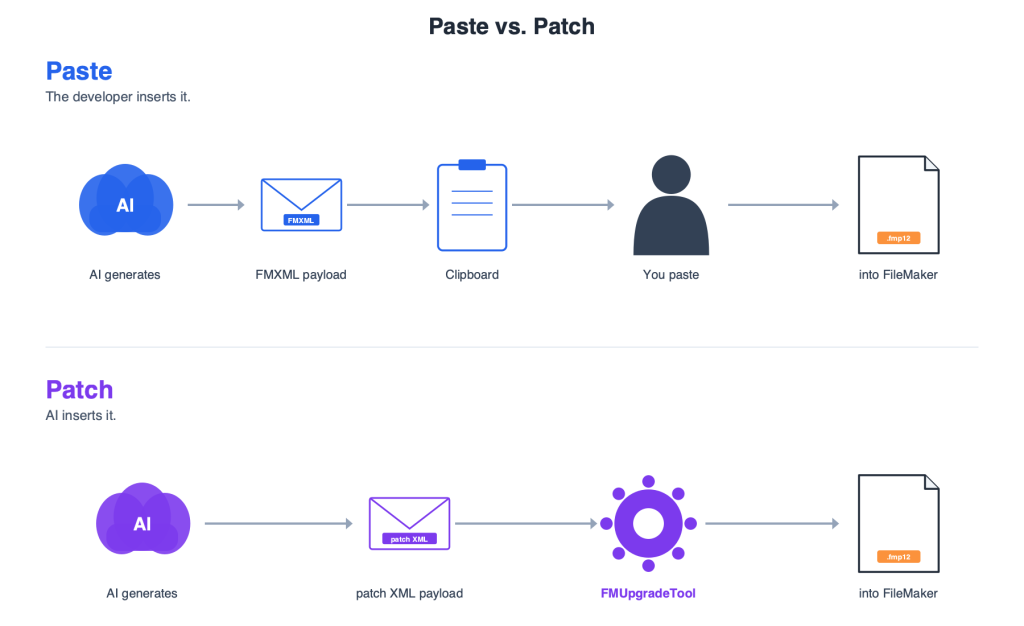
Under the hood, most current AI-assisted FileMaker development tools follow the same process: AI generates XML code and writes it to the clipboard and then we can paste it into FileMaker. I refer to this process as the FM AI Paste method, or simply Paste.
The normal manual process in FileMaker is to copy a script or schema element to the clipboard, then paste it into, say, another FileMaker file. With the FM AI Paste method, AI generates the code and places it on the clipboard — as if we’d copied from FileMaker. We then paste the result into the target file as scripts, fields, or custom functions.
This FM AI Paste workflow is usually invisible inside the AI development tools that use it. This article provides a window to see Paste at work — what it is, how it works, and where its limits are. I’ve written this for two kinds of readers: those who want to understand how AI-assisted FM tools work under the hood, and those who want a foundation to start exploring these techniques and build their own. For the latter, see If You Want to Build Your Own near the end.
This article builds on material in FileMaker AI Foundations: FMXML and the Clipboard Tool, which goes deeper into the FMXML snippet code Paste depends on. I’d recommend reading it first for a more complete understanding of FMXML and the clipboard.
A companion video for this article is coming soon.
The previous article also has a video companion — watch it at youtu.be/8vISOTOjvJs
Paste & Patch
While this article focuses on the AI-to-clipboard Paste technique, there’s another way for AI to modify FileMaker files, the FM AI Patch method (or simply Patch), which pushes schema directly into a FileMaker file via Claris’s FMUpgradeTool. That requires no clipboard step at all, and opens up even more possibilities. But it has its own technical hurdles. We’ll discuss Patch in the next article in this series.
Looking at the two methods side by side: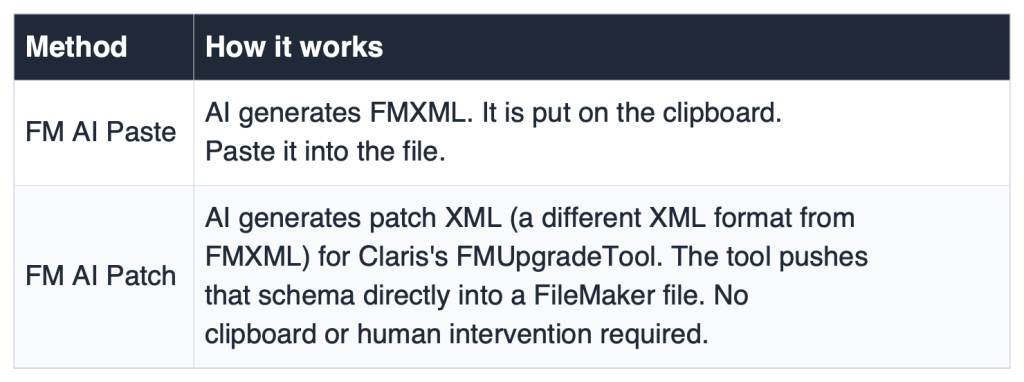
The Technical Foundation
FileMaker’s point-and-click interface is just the top UI layer. Underneath, FileMaker represents its entire schema — every script, table, field, custom function, and layout object — as XML. When we copy schema elements, FileMaker sends them through the clipboard as FMXML (more precisely, FMXML snippet code — a snippet being FileMaker’s term for a self-contained clipboard payload of schema). Copy a script from one file, paste it into another — FMXML is what travels between them. Similarly, when you copy and paste a section of a script, layout elements, or a set of fields, the clipboard contents are FMXML.
A single Set Field step — Set Field [Projects::Status; “Active”] in the FileMaker UI — looks like this in FMXML: 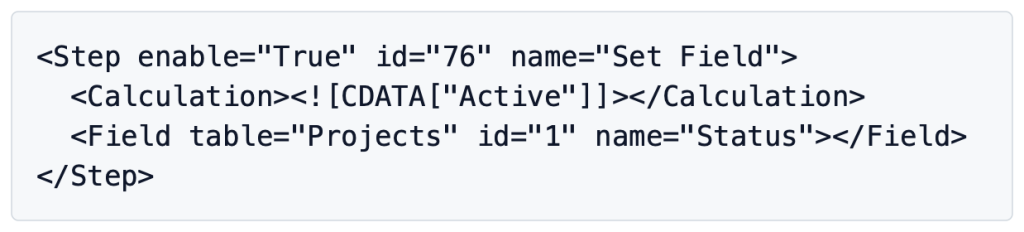 (That’s an excerpt. Full clipboard code is wrapped inside a <fmxmlsnippet type=”FMObjectList”> tag. If you select more than one step, or the entire script, before copying, the XML will be more complex.)
But we don’t have to write the FMXML. AI can.
AI isn’t the best tool for replicating button clicks and option selections, but it’s exceptionally fast at producing text-based code. FMXML gives AI something concrete to write — the actual code FileMaker uses to pass schema on the clipboard.
The Challenge
Without explicit guidance, a general-purpose AI model doesn’t know FileMaker’s internal conventions. Claris hasn’t published official FMXML formatting guidelines, and AI models have not been trained on that level of FileMaker knowledge. To add to the challenge, FileMaker is unforgiving of poorly formed FMXML. A wrong field name, a missing required code parameter, or a malformed calculation can fail outright — or, worse, appear to paste cleanly and only misbehave later. The general FileMaker knowledge and pattern inference that LLMs (Large Language Models) rely on are enough for most AI conversations about FileMaker, but they aren’t enough for generating exact and valid FMXML. That requires explicit guidance — which is why I recommend using custom AI Skills.
Custom Skills and Claude
A Skill is Claude/Anthropic’s term for a special file that gives guidance to the AI in how to accomplish certain tasks (Anthropic’s overview). It is an organized instruction file — typically markdown (a plain-text format used for documentation) with a metadata header at the top — that gives the AI precise guidelines and guardrails for a specific task. With well-designed Skills, an LLM can reliably generate FMXML — producing verified step IDs, wrapping calculations correctly, formatting field references with the right attributes, and following FileMaker’s conventions.
AI Skills are especially associated with Claude, but the use of similar markdown instruction files to guide AI behavior has spread, with Skills or Skill-like mechanisms now being an option in OpenAI’s Codex CLI (AGENTS.md), Google’s Gemini CLI (GEMINI.md), GitHub Copilot, and Cursor. While I’ll generally talk about Claude and Claude Skills, much of this discussion applies to other major LLMs.
Skills can be explicitly invoked, but if the Skill’s metadata has a well-crafted description, the AI should know when to trigger it automatically based on key phrases in your prompts. In other words, your natural language requests should be enough to call up the Skill.
A note about our Claude Skills: The Skills our team uses aren’t packaged for outside use. This article describes what they do. For readers who want to build their own, see If You Want to Build Your Own near the end.
Moving the Code to the Clipboard
AI generates the code in FMXML snippet format. Now we need to get that AI-generated code onto the clipboard — correctly.
FileMaker doesn’t read plain text from the clipboard for schema operations. We can’t, for example, take FMXML code, copy it as text to the clipboard, and paste it into FileMaker and have it appear as schema. It won’t work. The FMXML has to be well-formed and wrapped in a binary clipboard type that signals “this is FM schema.” FileMaker uses 4-character type codes here: XMSS for script steps, XMSC for a complete script, XMTB for a table, XMFD for a field, XMFN for a custom function, XML2 for layout objects (among others). Plain text tools can’t write that wrapper. We have two ways to accomplish that:
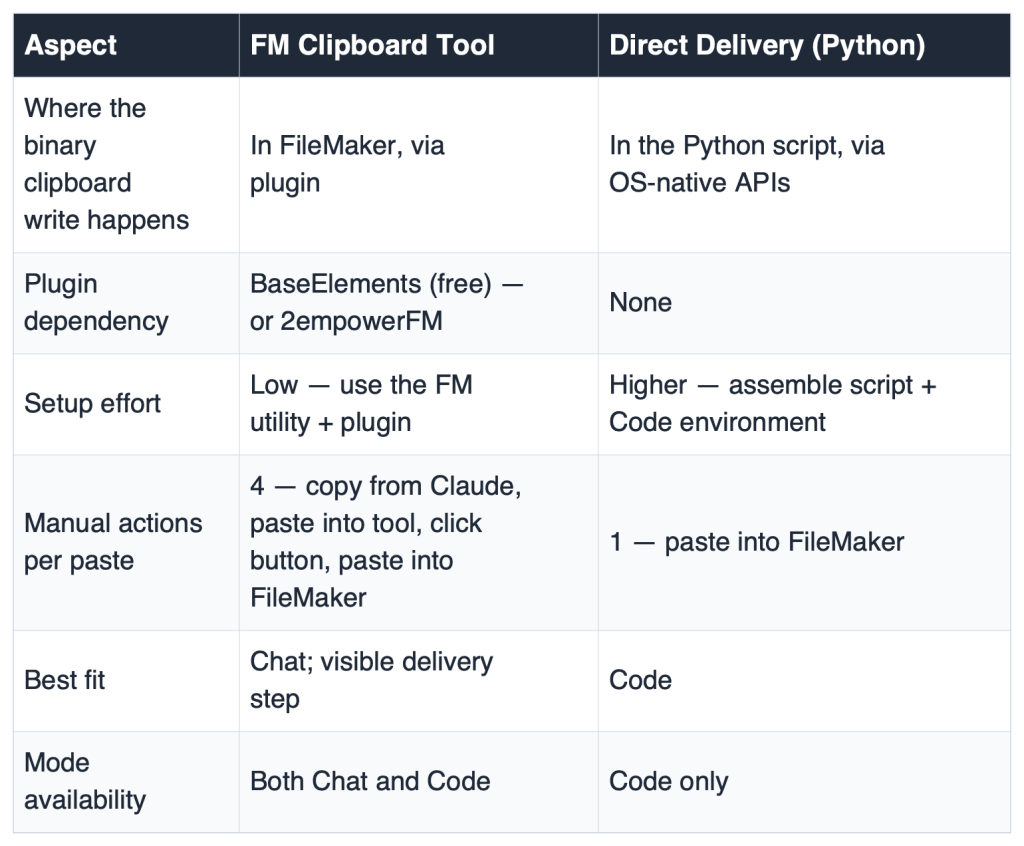
FM Clipboard Tool — manual but visible. A free FileMaker utility I developed that uses the BaseElements plugin to read FMXML from a text field and write it to the clipboard correctly wrapped. Paste FMXML from Claude into the utility file, then click a button to put it on the clipboard. This is the practical option for Chat mode, since Claude can’t write to the local clipboard from a browser. Alternative utilities, like 2empowerFM Clipboard Explorer, are also available.
Direct delivery — automated via Python script. In Claude Code (the file-system / shell / tool-equipped version of Claude, available at claude.com/code — more on this later), we can instead run a small Python helper script that writes FMXML directly to the clipboard. No manual step and no third-party plugin required. Initial setup is more work, but the only manual action required is pasting into FileMaker. Note that Claude Code requires a paid Claude plan (or API usage), whereas the Chat-based path above — Claude Chat plus the FM Clipboard Tool — can be used for free.
At a Glance
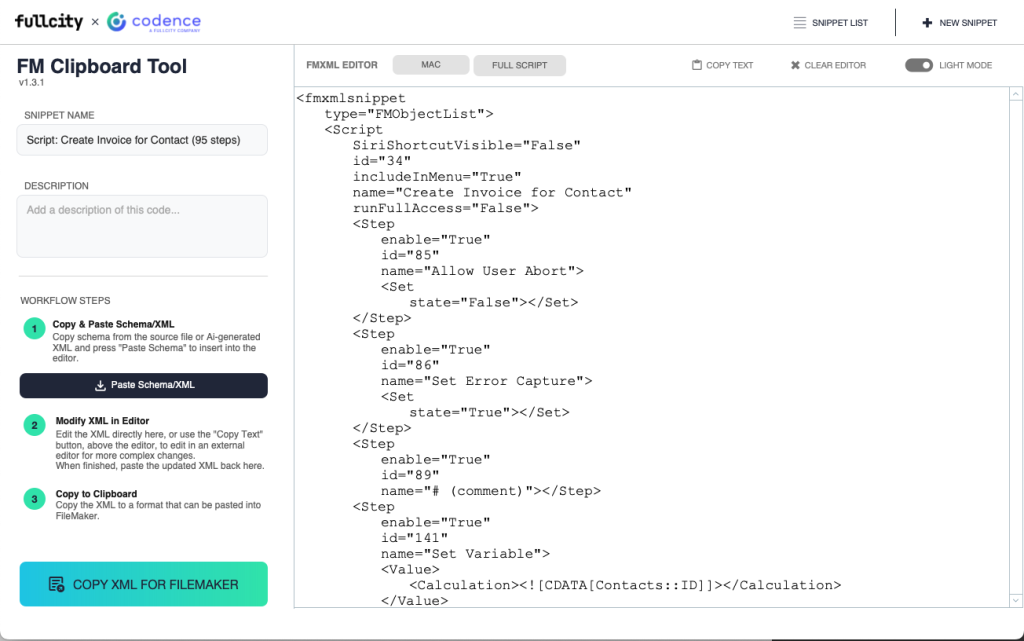
The FM Clipboard Tool with FMXML pasted in.
The Design → Convert → Deliver → Confirm Pipeline
The workflow I prefer has four stages, each handling a different kind of quality check at its natural level.
Design. Upload a design spec or describe what is wanted in plain English. Claude produces a plain-text design — no XML yet, just human-readable script steps (or field definitions, or custom function logic). This is the easiest place to catch logic problems, naming inconsistencies, or scope issues.
Convert. Once the design is right, ask Claude to convert it to FMXML. Claude generates the complete FMXML snippet, relying on the guidance of custom Skills (the conversion Skills carry the FileMaker-specific knowledge — the walkthrough later in this article shows this step in action).
Deliver. The FMXML is placed on the clipboard in the format FileMaker expects. We then paste the AI-generated schema into FileMaker.
Confirm. After pasting, we test before moving on. Is every step error-free? Do field references resolve? Run the script against a test record. For a thorough confirmation, look at FileMaker’s Import.log. 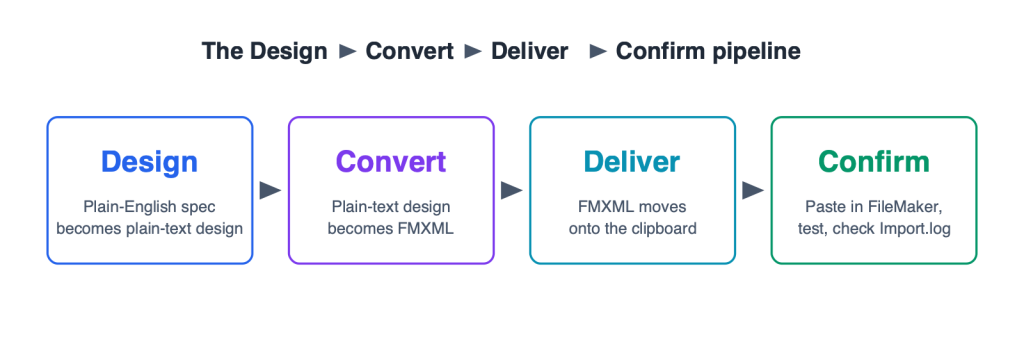 Working notes for the pipeline:
- Always work in a dev copy or clone. Never paste into production. Verify in development first.
- Don’t stack unverified changes. Open every pasted element and scan it. Run scripts against test records before building on top.
- Check for dependencies. A pasted element often relies on others to work — a Perform Script step needs its target script to exist; a field reference needs its field. Confirm that anything the new element calls is already in place.
- Slow down when it matters. AI lets us work quickly, and that’s a large part of its appeal — but speed can hide bugs that take much longer to identify and fix later. A few moments of review early on beats hours of debugging later.
Full Walkthrough in Claude Chat — Generating a Script
Let’s run the full Paste process in Claude Chat, delivering via the FM Clipboard Tool.
The scenario. Imagine a solution with a Projects table and a Project Detail layout. When a user clicks “New Project” from the project list, a script should create a new record, set default values, and navigate to Project Detail ready for data entry. This has a predictable structure, is easy to describe in plain language, but can be tedious to build manually.
Stage 1: Design
Start a Claude Chat session with your Skills loaded (see Anthropic’s guide to using Skills in Claude if you’re new to this). Then describe what you need:
Prompt:
I need a script called “New Project Initialize”. It should freeze the window, create a new record in the Projects table, then check for errors. If the record creation succeeds, set these defaults: Status = “Active”, ProjectType = “Standard”. Then navigate to the “Project Detail” layout (Projects table occurrence) and position the cursor in the ProjectName field.
For real-world development on complex files, we’ll want to feed Claude a Database Design Report or the XML from Save a Copy as XML for more complete reference data about the specific tables, fields, layouts, and existing scripts in our solution.
Reviewing the plain-text output. Claude produces something like: 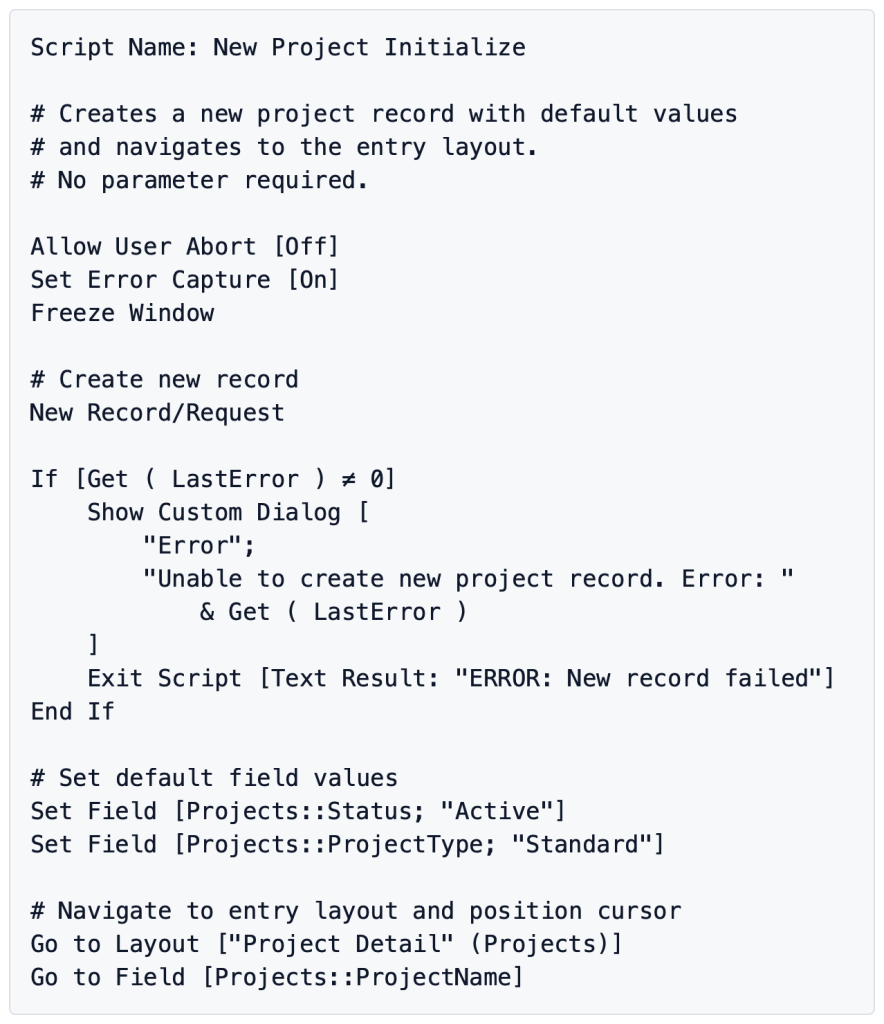 Read it before doing anything else. Check:
- Field names — Do Status, ProjectType, and ProjectName match the actual field names in the Projects table?
- Layout name — Is “Project Detail” the exact name, including capitalization and spacing?
- Table occurrence — Is Projects the correct TO in the Relationships graph?
- Logic flow — Does the error check belong where Claude put it?
Corrections here take seconds. After conversion, the same correction means re-converting. We ask Claude to revise before proceeding if anything looks off.
Stage 2: Convert
Once the design looks right, we issue a new prompt to Claude:
Prompt:
Convert this to FMXML using the script conversion Skill.
Claude generates the complete FMXML snippet. The output will look like this (showing the wrapper tags and first several steps to demonstrate the structure): 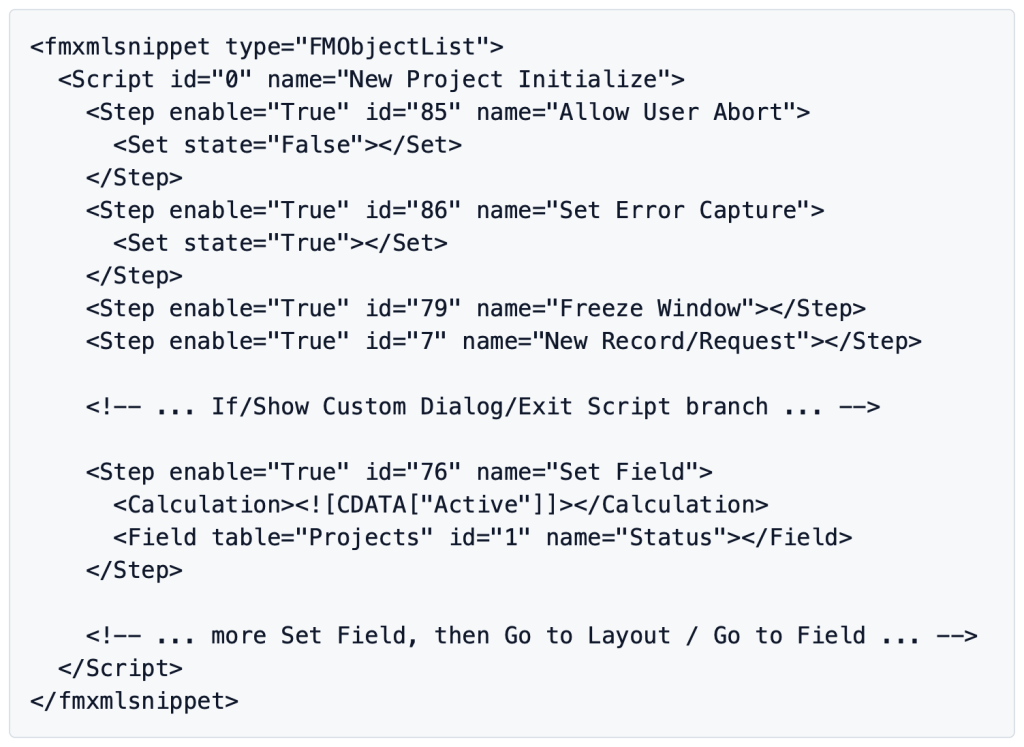
We won’t normally need to read this FMXML output. But seeing it once is useful: every step becomes a <Step> element with id and name attributes, plus child elements for any parameters the step takes.
Stage 3: Deliver
With the FMXML ready:
- Copy the FMXML from Claude’s output, or download the file.
- Open the FM Clipboard Tool.
- Paste the FMXML into the tool’s text field.
- Click the Copy XML for FileMaker button. The tool moves the data to the clipboard, wrapped in the binary format FileMaker expects.
- Switch to FileMaker, open the Script Workspace, and paste the script.
FMXML in the FM Clipboard Tool
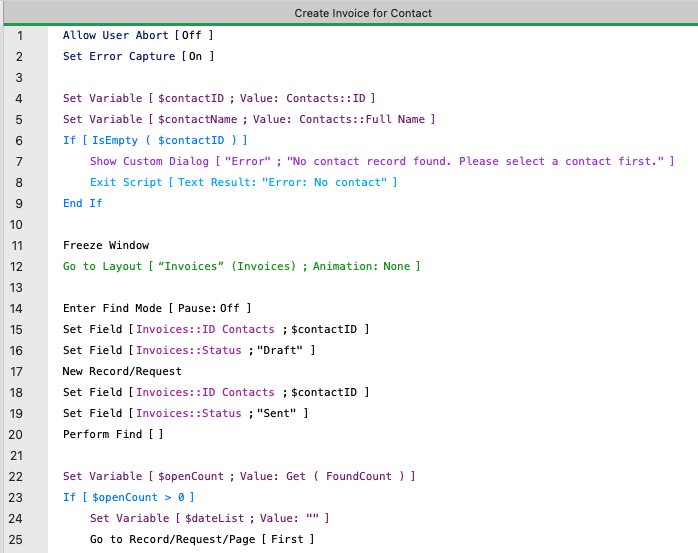
The resulting script in FileMaker’s Script Workspace
Stage 4: Confirm
We should see the new script in the Script Workspace, with every step populated. Scan through it: field references should show field names, not unknown references; layout references should resolve. Run it against a test record and confirm it behaves as designed.
If a paste produces empty output, garbled text, or a FileMaker error, the first thing to check is the FMXML — look for mismatched tags or missing attributes, or ask Claude to regenerate the code. For silent failures, FileMaker’s Import.log (found alongside your .fmp12 file) is the place to look. Each paste produces a small sequence of tab-separated lines like: 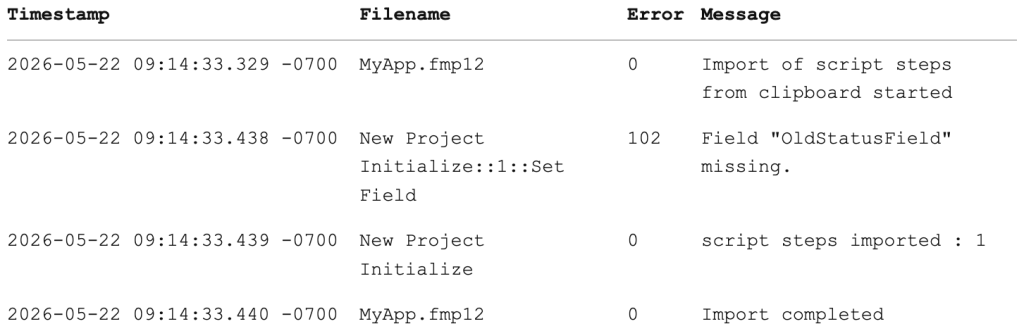
Four columns: timestamp, the file (or Script::step::location when an error is reported), error code (0 for success), and a human-readable message. The lines that matter are the non-zero codes — 102 here means a missing field; 10 means a missing attribute (FileMaker Error Codes). In the rare cases when pasting into FileMaker doesn’t show an obvious error, the error can still be noted here.
Other Schema Types — Tables/Fields and Custom Functions
The same process applies to other FileMaker element types. If something can be copied and pasted within FileMaker, we can generate it this way.
Tables and fields. Describe the table needed, then Claude produces a plain-text definition. Review, convert, deliver, confirm.
Let’s create a Clients table:
Prompt:
Design a Clients table definition. I need these fields: ClientID (number, primary key, auto-enter), CompanyName (text, required), ContactName (text), Email (text), Phone (text), Address (text), City (text), State (text), PostalCode (text), Status (text), CreatedDate (date, auto-enter creation), CreatedBy (text, auto-enter account name), Notes (text, no indexing).
Claude produces a structured plain-text definition of the table and its list of fields, including field types, storage options, auto-enter, validation, whatever we specify. We review it the same way we reviewed the script. When it’s correct, we request conversion to FMXML. The ClientID primary key, as FMXML, might look like: 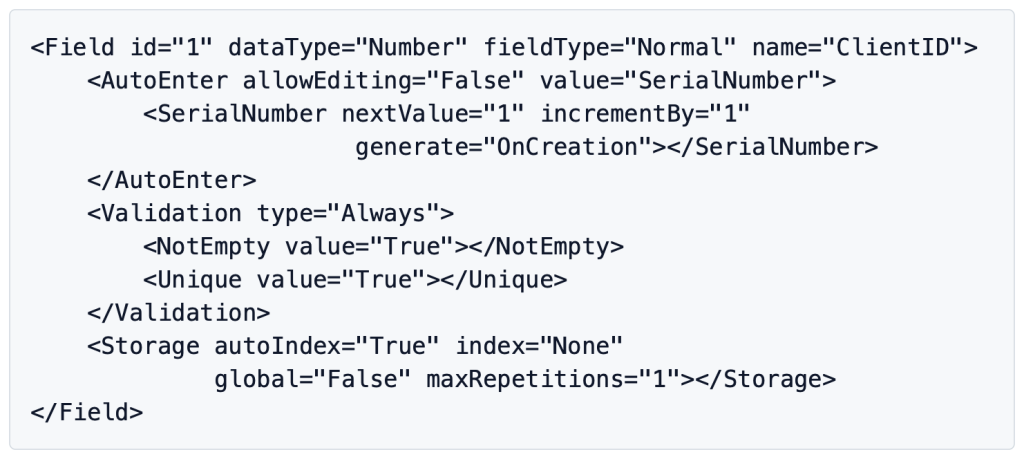
The full FMXML for the table contains a set of similar FMXML lines for each field. Different field types use different child elements. A Calculation field replaces the <Storage> tag with <Calculation>, for instance, while a simple Text field with no validation has a shorter <Field> block. See the FMXML reference PDF [Link] included with the previous article for more information.
Just as if we had copied the element from FileMaker, once the AI-generated code is on the clipboard we paste it into the right spot. For a full table, that’s FileMaker’s Manage Database dialog under the Tables tab. For one or more fields inside an existing table, it’s the Fields tab with the target table selected.
Custom functions follow the same pattern: Claude produces a plain-text definition, with calculation body and parameters, converts to FMXML, delivers, and we paste into Manage Custom Functions.
Scripts, script steps, tables, fields, custom functions — all follow the same four stages. As long as the AI custom Skills are well-built, with reliable FMXML format guidelines, it works beautifully.
Where the Paste Method Falls Short
Two significant limitations are worth noting. These apply to any use of the clipboard-based FM AI Paste method, including most of the FileMaker AI development tools currently available.
Relationships. FileMaker doesn’t expose relationships through the clipboard, so FM AI Paste doesn’t handle them — or table occurrences, or anything on the relationships graph. In the next article, we’ll look at how the FM AI Patch method avoids that limitation.
Complex layout work. Layout objects do have clipboard support — we can copy and paste them in FileMaker. The picture for AI is different depending on whether we’re generating layout FMXML from scratch or modifying existing layout FMXML.
Generating from scratch. For anything beyond the most simple set of layout objects, the necessary FMXML becomes long and complex enough to invite problems, and layouts tie into themes and styles, which adds another layer the AI has to track correctly. I treat AI-generated layout FMXML as useful for small targeted insertions, not for building complex layouts from a blank canvas.
Modifying existing layout FMXML. This is a better fit for Paste. Copy the layout objects from FileMaker to the clipboard, then get the FMXML (with the FM Clipboard Tool), ask AI to modify what’s already there (rename fields in bulk, adjust labels, restyle groups of objects, swap referenced styles, etc.), and paste the result back. The AI is editing well-formed FMXML it didn’t have to invent — a smaller ask that scales to substantially more complex layouts than from-scratch generation can.
The good news is that the FM AI Patch method — the subject of the next article — removes many of these layout limitations and makes layout work considerably more approachable.
Paste in Claude Code
Most of the article so far has assumed we’re running Claude in the simpler Chat UI — a chat conversation at claude.ai in a browser, or in Anthropic’s desktop app, Claude Desktop. But it’s important to consider the power of Claude Code, with file-system, shell, and tool access. Claude Code can be run several ways: as a stand-alone command-line tool (the CLI) in your terminal, as an extension within Visual Studio Code, or as a tab within Claude Desktop itself. The Claude Desktop and VS Code paths are typically the lower-barrier choice for developers who’d rather not work in a terminal. (See Resources at the end for links and more on each.) Claude Code changes how we work with AI in several useful ways.
What changes for Paste in Claude Code:
- Delivery is automated. A Python script replaces the FM Clipboard Tool step. FMXML is generated and placed directly on the clipboard. We just need to switch to FileMaker and paste.
- Richer session context. Claude can read project files, reference earlier work, and sustain longer build sessions than a Chat conversation can.
- Multi-element sessions feel different. Sequencing several pastes in one focused session — a script that depends on a custom function we’ve just generated, for example — is more natural in Code than in Chat.
Skills work in Claude Code via the same general idea but with different mechanics — see Anthropic’s guide to extending Claude with skills for the Claude Code installation path.
Quick Paste Walkthrough in Claude Code
A simple example. Say we need a custom function FormatPhone(phoneNumber) that returns a phone number formatted as (XXX) XXX-XXXX. With Skills loaded, we can roll the first three stages into one prompt:
Prompt:
Generate a FormatPhone custom function that takes a phoneNumber parameter and returns it formatted as “(XXX) XXX-XXXX”. Design it, convert it to FMXML, and put it on my clipboard.
Claude writes the plain-text design (visible in the conversation), converts it to FMXML, and runs the clipboard helper. It reports back something like:
Clipboard ready — the FormatPhone custom function is on your clipboard. Paste into Manage Custom Functions in FileMaker.
We still confirm the result carefully. After pasting the custom function into FileMaker, we scan the CF calculation and test against a few inputs.
We no longer need the FM Clipboard Tool. We don’t have to copy and paste FMXML into an external utility. We don’t really have to view the FMXML at all, if we don’t want to. For simple elements like this custom function, the design review step just requires a glance at Claude’s output and a few tests at the end. For complex scripts or schema, we can still ask Claude to design first and pause for review before continuing to convert and deliver. The four stages are always there; Claude Code lets us move through them at whatever pace the work warrants. 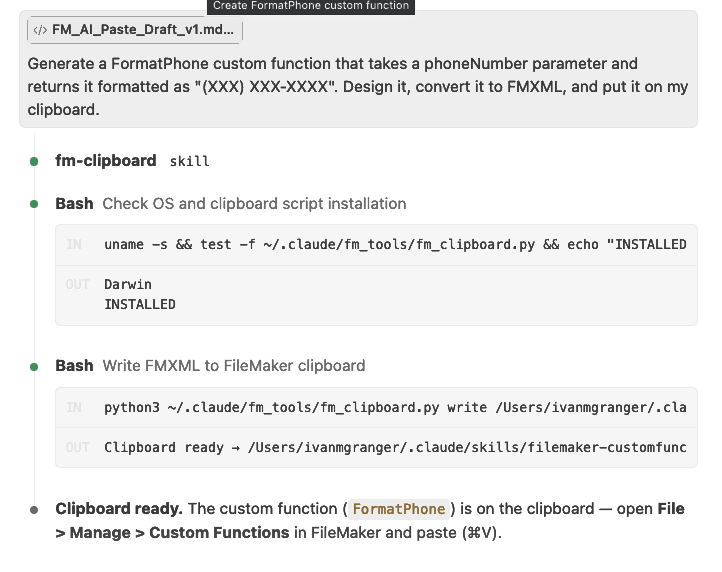
Claude Code session showing the prompt, design output, and “Clipboard ready” response.
Another benefit of Claude Code is that it makes direct schema deployment through the FM AI Patch method possible — the subject of the next article.
If You Want to Build Your Own
For developers who want to develop these techniques themselves, here’s the foundational map. None of these pieces is overwhelming, but they have to be done with some understanding and precision.
Skills. You’ll need at least two Skills for each FileMaker element type you want to be able to build with AI: scripts/script steps, tables/fields, custom functions, optionally simpler layout objects.
- Design Skill — one Skill per element type that focuses on designing human-readable code (scripts as they appear in the Script Workspace, or tables and fields that loosely replicate the information displayed in Manage Database).
- Conversion Skill — alongside each design Skill, a conversion Skill that correctly encodes the readable design into properly formatted FMXML snippet code.
Skills resources. Beyond each Skill’s markdown document, you’ll want additional reference documents the Skills can pull from — especially for the conversion Skills.
- FMXML reference — one per element type. The Skill consults this for correct format and structure. The companion FMXML article and reference PDF are useful starting points.
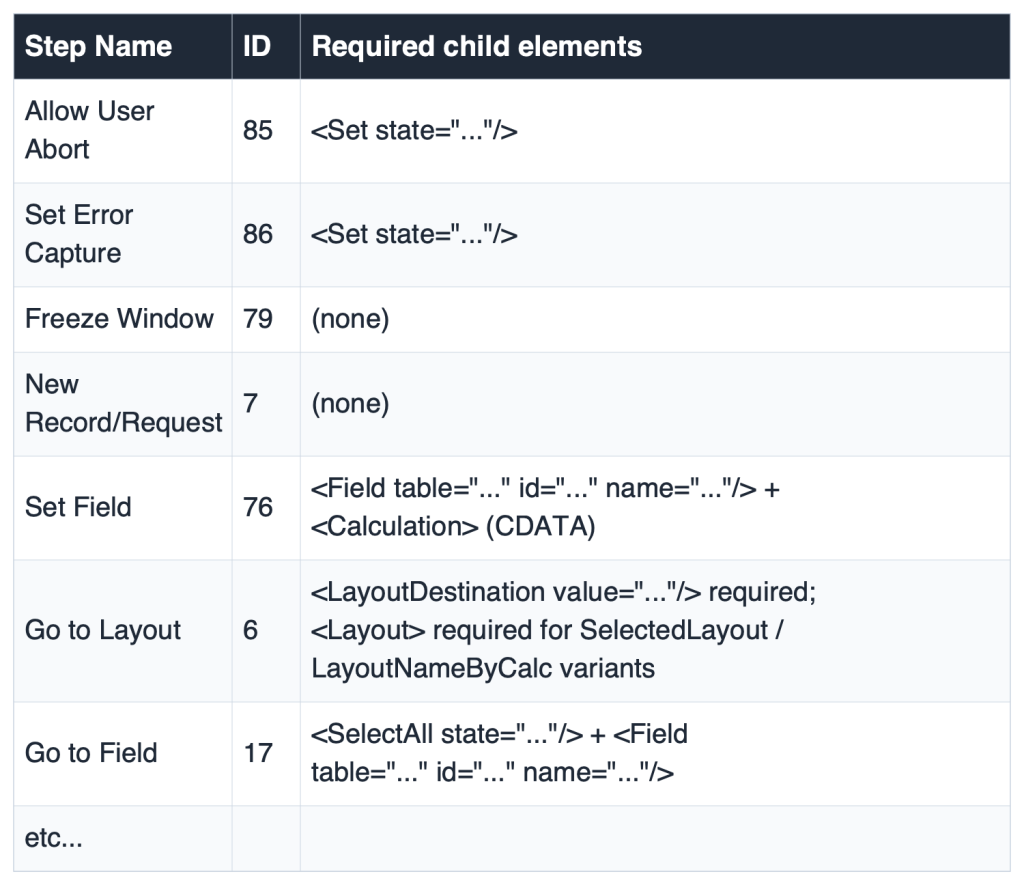
- Step ID reference table — for scripts specifically, an authoritative mapping of script step names to numeric IDs along with required child tag elements. FileMaker assigns each script step a fixed numeric ID (Set Field is 76, Allow User Abort is 85, etc.). The FMXML format uses these IDs to identify each step. Without this, a conversion Skill will make guess at script step IDs and often produce incorrect script FMXML. A simple design for such a table:
A Python clipboard script (Code workflow). For Claude Code, a Python script can read FMXML and write it directly to the clipboard wrapped in the type codes named earlier (XMSS, XMSC, XMTB, XMFD, XMFN). The script can use OS-native APIs (NSPasteboard via PyObjC on Mac, Win32 clipboard APIs on Windows).
A way to inspect actual FMXML. As you refine your Skills, you’ll want to visually confirm your AI-generated FMXML and compare with FileMaker’s actual FMXML. The simplest approach is to copy FileMaker elements to the clipboard and view them in the FM Clipboard Tool or similar utility.
A word of caution. Test thoroughly. This approach sidesteps FileMaker’s development UI, as well as its built-in error handling — a safety harness we tend to take for granted. The responsibility is on you as a developer to check and double check everything. Work in developer copies, verify every paste, and run scripts against test records before relying on them. Test at every stage and double check before deploying to a production environment.
What’s Next
The workflow described here — Skills plus the Design → Convert → Deliver → Confirm pipeline — is a fully functional method for generating scripts, tables, fields, and custom functions.
Under different names and packaged in different tools, Paste is the shared method behind most current AI-assisted FileMaker tools. Understanding it for ourselves lets us work more capably with any of them — and gives us a foundation to begin working with it more directly, if we want to.
When it’s up and reliably running, FM AI Paste is exhilarating. For those of us who have been building FileMaker solutions for years, compressing the manual process of creating a script — adding each step one at a time, selecting every option from a popup menu or typing into a calculation window — into a well-formed AI prompt, then pasting the result, is pretty amazing.
The next article in the series covers the FM AI Patch method, focusing on areas that the Paste method on its own can’t handle — relationships, table occurrence creation, and full schema deployment as a single operation — pushed directly into a FileMaker file. Patch sidesteps the clipboard entirely. Where Paste requires us to be present for every delivery, Patch eliminates that requirement: the cycle of design, convert, deliver, and confirm can run without us in the loop, letting us define where the process should pause for review. That shift is where the real potential of Patch shows up. 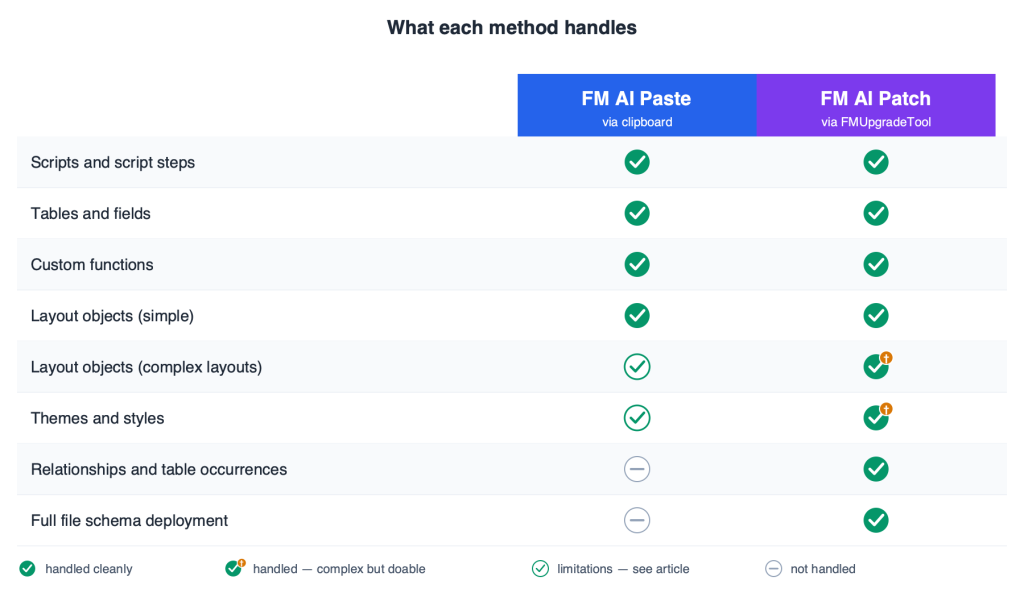
Key Takeaways
- Paste is the shared mechanism behind most current AI-assisted FileMaker tools — AI generates FMXML, the clipboard carries it, we paste it into the file.
- The Design → Convert → Deliver → Confirm pipeline keeps each quality check at its natural level: plain-text review at design, then conversion, delivery, and post-paste verification in FileMaker.
- Skills are what make the output reliable — and you’ll need to build or source them yourself.
- The FM Clipboard Tool [Link] is a handy, free utility for reviewing and understanding FMXML snippet code on the clipboard.
- Paste handles scripts, tables/fields, and custom functions cleanly, and can modify existing layout objects as well. Relationships, and building complex layouts from scratch, are where Paste reaches its limits — and where the next article picks up.
Resources
- 2empowerFM Clipboard Explorer — Alternative FileMaker clipboard utility for viewing and editing FMXML.
- BaseElements Plugin — baseelements.com — Free, open-source FileMaker plugin; the engine behind the FM Clipboard Tool’s clipboard access. (Included with FM Clipboard Tool.)
- Claris Database Design Report (DDR) — help.claris.com — FileMaker’s structured XML export of a file’s complete schema; useful as reference data to feed AI when working on a specific file.
- Claris FMUpgradeTool — help.claris.com — Claris’s command-line tool for applying schema changes directly to a FileMaker file. The engine behind the FM AI Patch method covered in the next article.
- Claris Save a Copy as XML — help.claris.com — A FileMaker Pro feature for exporting a file’s schema in XML form.
- Claude Chat — claude.ai — Anthropic’s conversational interface for Claude, used for the manual FM Clipboard Tool workflow.
- Claude Code — claude.com/code — The file-system / shell / tool-equipped version of Claude. Available as a command-line tool (CLI), as a Visual Studio Code extension, or as a tab within the Claude Desktop app.
- Claude Desktop — claude.ai/download — Anthropic’s desktop app for macOS and Windows. Bundles Claude Chat, Claude Code, and Cowork as tabs in a single application — a lower-barrier path to Claude Code than the command-line tool.
- Cursor — rules — docs.cursor.com — Cursor’s per-project AI guidance files.
- Extend Claude with skills (Claude Code) — code.claude.com — Installing and using Skills in Claude Code.
- FileMaker Error Codes — help.claris.com — Claris’s complete reference of numbered FileMaker error codes (e.g., 102 = field missing); useful when reading the Import.log.
- FM Clipboard Tool — Free FileMaker utility for reading and writing FMXML on the clipboard. Submit the form below to download.
- FMLayoutLens (FMPerception team) — proof.sh/fmlayoutlens — Layout inspection tool with an “exploded layout” view showing all objects.
- FMXML and the FM Clipboard Tool — https://codence.com/resources/blog/technology/filemaker-ai-foundations-fmxml-clipboard-tool — Deep-dive on FMXML and the FM Clipboard Tool.
- FMXML Developer Reference PDF — Free download. Because Claris has not released official FMXML documentation, this reference guide will get you started.
- GitHub Copilot — custom instructions — docs.github.com — Copilot’s project-level instruction mechanism.
- Google Gemini CLI — github.com/google-gemini/gemini-cli — Uses GEMINI.md for project-level instructions.
- Markdown — markdownguide.org — The plain-text formatting syntax used for Skills, AI-instruction files, and most modern technical documentation — including the README files that GitHub renders on repository pages.
- OpenAI Codex CLI — github.com/openai/codex — Uses AGENTS.md as its project-level instruction file, a Skill-like mechanism.
- Use Skills in Claude (claude.ai) — support.claude.com — Installing and using Skills in Claude Chat.
- Visual Studio Code — code.visualstudio.com — Free text editor with strong XML support via free extensions.
- What are Skills? (Anthropic) — support.claude.com — Anthropic’s conceptual overview of Skills.
Glossary
|
Term |
Definition |
|
BaseElements plugin |
A free, open-source FileMaker plugin (from Goya) that adds capabilities beyond FileMaker’s native script steps — including the clipboard-write functionality used by the FM Clipboard Tool. |
|
Binary clipboard type |
A clipboard can hold content in multiple formats simultaneously, each tagged with an identifier so receiving applications know what kind of data is there (plain text, RTF, image, etc.). FileMaker’s schema uses a custom binary format identified by a four-character type code (e.g., XMSS) that signals to FileMaker the content is schema, not plain text. See FMXML type code. |
|
Claude Chat |
The conversational interface for Claude — accessed at claude.ai in a browser or via the desktop app. Distinct from Claude Code. |
|
Claude Code |
The file-system / shell / tool-equipped version of Claude. Available at claude.com/code as a command-line tool (CLI), as a Visual Studio Code extension, or within the Claude Desktop app’s Code tab. |
|
Claude Code CLI |
The terminal command-line form of Claude Code. The CLI is the most common installation; other surfaces (IDE extensions, desktop app tab) call into the same engine. |
|
DDR (Database Design Report) |
FileMaker’s structured XML export of a file’s complete schema (tables, fields, scripts, layouts, value lists, etc.) — available from the Tools menu. Useful as reference data to feed AI when working on a specific file. |
|
Design → Convert → Deliver → Confirm pipeline |
The four-stage AI development workflow used throughout this article — plain-English design first, then convert to FMXML, deliver to clipboard, then confirm in FileMaker. |
|
FM AI Paste |
The method covered in this article — AI generates FMXML, the clipboard carries it, we paste it into FileMaker. |
|
FM AI Patch |
The method covered in the next article in this series — schema pushed directly into a FileMaker file via Claris’s FMUpgradeTool, no clipboard step required. |
|
FM Clipboard Tool |
A free FileMaker utility (developed by the article author) for reading and writing FMXML on the clipboard. |
|
FMUpgradeTool |
A Claris command-line tool for applying schema changes directly to a FileMaker file. The engine behind the FM AI Patch method. |
|
FMXML |
FileMaker’s term for the XML format it uses internally to represent schema elements (scripts, fields, tables, custom functions, layout objects, etc.) on the clipboard. |
|
FMXML snippet code |
A self-contained FMXML clipboard payload wrapped in <fmxmlsnippet type=”FMObjectList”>. The format used for copy-paste of schema between FileMaker files. |
|
FMXML type code |
A four-character identifier used on the clipboard to signal what kind of FileMaker schema the payload contains: XMSS (script steps), XMSC (complete script), XMTB (table), XMFD (field), XMFN (custom function), and others. |
|
<fmxmlsnippet> |
The outer XML element that wraps all clipboard-format FMXML payloads. |
|
LLM (Large Language Model) |
The neural-network technology behind AI assistants like Claude, ChatGPT, and Gemini. Trained on large amounts of text to produce natural-language responses. |
|
Markdown |
A plain-text formatting syntax used widely for technical documentation. Most Skills and AI-instruction files are written in markdown. |
|
Metadata header |
The structured information at the top of a Skill file — typically in YAML format — that tells the AI when the Skill should auto-trigger based on the user’s prompt. |
|
NSPasteboard |
macOS’s native clipboard API. Used by the Python clipboard script described in If You Want to Build Your Own. |
|
Patch XML |
The XML format used by FM AI Patch — distinct from FMXML; designed for Claris’s FMUpgradeTool to apply schema changes directly to a FileMaker file. |
|
PyObjC |
A Python-to-Objective-C bridge that lets Python code call macOS native APIs (including NSPasteboard for clipboard access). |
|
Save a Copy as XML |
A Claris FileMaker feature (Tools menu and script step) that exports a file’s schema in XML form. Distinct from DDR — Save-as-XML can be reconstituted back into a file via FMUpgradeTool; DDR is read-only. |
|
Skill |
Claude/Anthropic’s term for a special instruction file that guides the AI in how to accomplish a particular task. Other AI tools have similar mechanisms with different names. |
|
Win32 clipboard APIs |
Microsoft Windows’s native clipboard API. Used by the Python clipboard script for Windows clipboard access. |

Built with you in mind
Speak to one of our expert consultants about making sense of your data today. During
this free consultation, we'll address your questions, learn more about your business, and
make some immediate recommendations.