
The previous article in this series looked at the FM AI Paste method, or simply Paste — the AI-to-clipboard technique that sits under most of the AI-assisted FileMaker tools you’ll see today. Paste is fast and flexible, and it handles the majority of everyday schema work well — scripts, tables and fields, custom functions. But it has real limits, the most obvious being that it cannot create relationships at all.
The other primary method to build FileMaker structure with AI — the FM AI Patch method, or simply Patch — removes that limitation and others. Instead of sending schema through the clipboard, Patch writes it to an XML file and then pushes the change straight into the FileMaker file using the FMUpgradeTool (a Claris command-line utility available in the FileMaker Server installer). There’s no clipboard, and no manual paste step. In fact, there’s no need for you to be in the loop at all — except where you choose to be.
This article walks through the whole method: what Patch is, how it runs, where it moves beyond Paste, and what opens up when an AI assistant can write schema directly into a FileMaker file.
A quick word on tools. I’ll mostly talk about “AI” doing the work, and name Claude and Claude Code specifically where it matters, since that’s primarily what I use. The workflow described here has been built and tested specifically on Claude Code, though in principle other agentic AI platforms with comparable shell and file-access capabilities could do the same job.
This article assumes you’ve read FileMaker AI Foundations: FM AI Paste, the previous article in the series. Much of the technical foundation of Patch is largely the same.
Contents
- What FM AI Patch Is
- The FMUpgradeTool
- Patch Overview
- Two Kinds of XML
- Skills — Teaching the AI to Write Correct Patch XML
- The Close → Patch → Reopen Cycle
- AddAction vs. ReplaceAction
- Scripts, Tables, and Fields via Patch
- Creating a Relationship with FM AI Patch
- Save a Copy as XML
- The Autonomous Iteration Loop
- Layout Objects and Themes
- Native Layouts vs. JavaScript and WebViewers
- Paste vs. Patch vs. JavaScript
- Current Limitations and Where This Is Headed
- Key Takeaways
- Resources
- Glossary
From Paste to Patch
The FM AI Paste method is the AI-assisted FileMaker technique most of us encounter first. With the Paste process, AI generates a special form of FileMaker XML called FMXML snippet code, puts it on the clipboard, and we paste the result into FileMaker as actual schema. It works beautifully for scripts, tables and fields, and custom functions — much of what we build day to day. The previous article in this series walked through that process in depth.
A few things hold Paste back, however. The biggest is that the Paste method can’t handle relationships, because FileMaker doesn’t support copy-and-paste of relationships at all. Complex layouts are a problem for Paste too: generating layout FMXML from scratch is technically possible, but the sheer volume and fragility of the XML make it impractical for anything beyond one or two simple layout objects at a time. There’s also a more fundamental limit that’s easy to miss, because it’s baked into the workflow itself — every Paste action needs a developer’s hand to do the actual paste. That’s fine for occasional insertion of a specific element, but doing it by hand dozens or hundreds of times in a row is another matter.
FM AI Patch doesn’t have these limits. Where Paste handles one element at a time, a single patch can deliver many at once — a whole set of tables, fields, table occurrences, and the relationships tying them together, all created together. Patch can also do something Paste structurally can’t: build interdependent schema in stages. A first patch creates the fields a script needs; a second patch creates the script that uses them. And because AI drives all of it rather than requiring us to paste each step, what would have been a long series of separate actions becomes, from our perspective, essentially one action.
The real power shows up when these combine with FileMaker’s own ability to export its schema. AI can create some schema elements in a FileMaker file, then export the file’s updated state as XML, check the results, fix any problems, and patch again — truly “agentic” development. The cycle can run largely on its own, with the developer stepping in wherever they want to. The Autonomous Iteration Loop section explores this further.
What FM AI Patch Is
At its core, FM AI Patch is a different way of getting AI-generated FileMaker code into a file. Rather than putting code on the clipboard for us to paste, AI writes a patch file — a small XML document describing the schema to add or change — and runs a Claris command-line utility that writes that schema straight into the FileMaker file.
That command-line utility is the FMUpgradeTool, which ships with the FileMaker Server installer. (A tools-only installer is also available, so you don’t have to run the full FileMaker Server install to get use of the tool.) Claris built the FMUpgradeTool for moving schema changes between versions of a solution during an upgrade. It takes a patch file with the FileMaker elements defined in XML and applies the updates directly to a FileMaker file.
The first part of the Patch workflow is the same as Paste. We describe what we want, AI produces a plain-text design, and we review and confirm it. The conversion step produces a different kind of XML than Paste’s clipboard format — instead of FMXML snippet code for the clipboard, AI produces a patch file for the FMUpgradeTool — which then applies the changes as schema to the FileMaker file. AI writes the patch, the FMUpgradeTool applies it to the file.
Because running the FMUpgradeTool means sending it commands from a command line, Patch must run with an agentic AI — that is, an AI model that can take actions, not a purely chat interface. In the case of Claude, we switch from Claude Chat to Claude Code, the version of Claude that can work with the files on your computer and run programs like the FMUpgradeTool.
I should pause to make it clear that this FM AI Patch process only modifies schema. It builds and changes the structure of a file — tables, fields, relationships, scripts, layouts — and it does not touch your actual data. The records in the file are left alone.
The FMUpgradeTool
Claris originally made the FMUpgradeTool for schema migration during version upgrades.
The original workflow was manual and diff-driven. Picture a developer with version 1 of a solution in a client’s hands, and a version 2 in development with new features ready to ship. They’d export XML from both files with Save a Copy as XML, compare the two exports to find what changed, and from that difference manually write a patch file containing just the new or changed schema. The FMUpgradeTool would apply that patch to the client’s version 1, and the new features would appear in the original file — requiring no imports, no data transfers. It’s handy for precise schema migration. But it’s labor-intensive in exactly the way AI is good at eliminating.
With FM AI Patch, we put the same tool to a new use, as a way to add AI-generated schema to a FileMaker file. AI writes the patch file directly from a plain-text spec. There’s no second file, no comparison, no diff — AI writes the patch from scratch. Then AI prompts the FMUpgradeTool to apply it to the FileMaker file. The AI-generated schema just appears in the file.
That’s the essential process at the core of FM AI Patch.
One important detail about the FMUpgradeTool itself: it works on a file that already exists — it changes an existing FileMaker file, but it can’t conjure one out of nothing, because its whole design is to apply a difference against existing schema. So even when we are starting a brand-new solution, we must first create a bare-bones FileMaker file by hand — the empty file created for us by FileMaker, including its default table and fields — and Patch works from there.
It’s also a good idea to take a moment to get that starter file into good shape before we begin patching. Personally, I’d rather start from a clean base — clearing out default interface elements I won’t need, and applying the base theme I want (see Layout Objects and Themes) — so I’m building onto a deliberate foundation, rather than stripping unwanted pieces back out after the fact.
Patch Overview
Before we get into the XML mechanics, here’s a quick overview of what the FM AI Patch method does and what you’ll need to set it up.
What Patch can build. Patch handles the full range of FileMaker schema: tables and fields, custom functions, value lists, custom menus, scripts, table occurrences, relationships, accounts and privilege sets, and layout objects and themes. The Paste method, on the other hand, can’t create relationships or table occurrences, can’t add accounts, privilege sets, or extended privileges, and can’t do much beyond basic layout objects.
That’s the core. The rest of this article walks through each piece in more detail.
Two Kinds of XML

Patch and Paste both use FileMaker’s XML, but not the same XML. It’s important to keep them straight:
- Paste uses the clipboard’s FMXML snippet code. This is what FileMaker puts on the clipboard when you copy a schema element.
- Patch uses a patch XML file. This is what the FMUpgradeTool reads. It’s an <FMUpgradeToolPatch> document whose <Structure> element holds <AddAction> or <ReplaceAction> blocks, and the element definitions inside those blocks look like the Save-a-Copy-as-XML format — not like clipboard snippets.
Unless you’ve worked with the FMUpgradeTool before, you may not have seen a patch file. In the FM AI Patch process, AI writes the patch file and feeds it to the FMUpgradeTool through the command line. Here’s an abbreviated patch that creates a Clients table with one field: 
Abbreviated patch file — creating a Clients table with one field
A handful of tags carry the whole structure:
- <FMUpgradeToolPatch> is the patch file itself — the XML document the tool reads. (To clarify, this patch file — or patch XML file — is not the same thing as the FMUpgradeTool itself, which is the command-line program that applies it.)
- <Structure> holds everything to apply. The FMUpgradeTool works through it top to bottom — which is why the blocks are ordered so each piece exists before anything else refers to it (here, the table is created before the field that belongs to it).
- Each <AddAction> is one thing to add, and the tag inside it names what’s being created: BaseTableCatalog for a table, FieldsForTables for fields, with similarly named blocks for table occurrences and relationships. A single <Structure> can hold many actions, which is how one patch builds an entire set of tables and relationships in a pass. (A catalog here is FileMaker’s container for all elements of a given kind in the file — the table catalog holds every base table, the field catalog holds every field, and so on. The membercount attribute on each catalog block is just a count of the new elements being added in that block.)
- Two different kinds of UUID appear here, and the distinction matters. Each catalog element (<BaseTableCatalog>, <FieldCatalog>) carries a real <UUID> identifying the file’s existing catalog — the bucket the new element gets written into. The new elements (the table, the field) each carry a placeholder UUID instead, which FileMaker replaces with a real, permanent identifier when it creates them.
This is still simplified. A real, working patch carries many more attributes on each element — storage, validation, and auto-enter settings on a field, for instance — so the example above is enough to recognize the structure, but not a complete patch you could run as-is. Claris’s FMUpgradeTool documentation (linked in the Resources) has the full structure and formatting details. And note that a raw Save-as-XML export is not itself a patch file — it’s the file’s current schema written out, useful as reference material, not something the FMUpgradeTool applies as-is.
A note on order. The XML inside a patch has dependencies, so the sequence of actions matters: the FMUpgradeTool works top to bottom, and each element has to exist before anything that refers to it (a table before its fields, a table occurrence before the relationship that joins it). When AI writes the patch, it can handle this ordering for you.
Skills — Teaching the AI to Write Correct Patch XML
Patch XML requires properly formatted XML code. A misplaced tag or a wrong attribute will cause the FMUpgradeTool to either reject the patch or possibly apply something subtly wrong. Left to its general knowledge, an AI will approximate the format: close, but not reliably correct.
The answer is the same one the previous article described: AI Skills. A Skill is a package of instructions and reference material that teaches the AI exactly how to construct a particular kind of code — in this case, valid patch XML for each kind of schema element. With the right Skills loaded, the AI isn’t guessing at the format; it’s following a known valid recipe. Claude calls these Skills. Other AI models have their own equivalents.
Skills are what turn “the AI roughly knows FileMaker’s XML” into “the AI reliably produces patches that apply cleanly.” For Patch the stakes are higher than for Paste: a misshapen patch can fail loudly, or worse, apply something subtly wrong that the tool still reports as a success. Good Skills close that gap by giving the AI exact, verified templates for each kind of schema element it might need to produce.
This article isn’t a guide to building Skills. The previous article in this series gives a fuller treatment of how Skills are structured and why they matter, and the broader online community around AI-assisted development is a good place to find current patterns and conventions for authoring your own. The practical point is just that you’ll need them — whether you build your own or use skills developed by someone else.
A note on harness structure as you build out a more sophisticated setup: Skills are one organizing layer. More advanced AI harnesses may also include specialized agents — a script-builder agent, a calc-builder agent, a layout-builder agent — where each agent pairs the relevant skills with role-specific context and tools. In this article, I am primarily trying to outline the essential elements to make the Patch technique functional, but it’s worth a quick note here. As you scale a Patch workflow — particularly across complex builds and many files — an agent-based harness setup is worth considering.
The Close → Patch → Reopen Cycle
The FMUpgradeTool writes directly into the FileMaker file, and FileMaker locks a file while it’s open. So the file has to be closed while a patch is applied. A patch run against a still-open file simply fails. That gives the method its basic rhythm — close, patch, reopen, verify. Claude Code can handle all four steps itself:
- Close the file. Claude Code closes the target file in FileMaker.
- Run the patch. Claude Code runs the FMUpgradeTool with the patch file.
- Reopen. Claude Code opens the file again.
- Verify. The patched elements are checked. You can do this yourself, or let Claude Code trigger Save a Copy as XML and confirm the results in the exported XML.

To get an AI agent to close and reopen the file takes a small bit of automation — a short helper script. On macOS, a simple AppleScript can tell FileMaker to close or open the specific file. On Windows, the equivalent has historically been a small script in PowerShell or VBScript, driving FileMaker through its ActiveX automation support. (My most recent testing has been on macOS. I have received reports of a possible issue with the relying on this method on Windows that I haven’t had time to properly test yet. I would treat Windows close/reopen as something to confirm before relying on it.)
AddAction vs. ReplaceAction
A patch file is built from actions, and two of them carry most of the weight in AI-assisted work.
AddAction creates new elements that don’t exist yet — new scripts, new tables and fields, new table occurrences and relationships.
ReplaceAction changes an element that’s already in the file — updating a script, changing a field’s type, refining a custom function.
An AddAction is creating something new, so it doesn’t need to point at anything that already exists. The new element carries a placeholder ID (id=”0″, signaling “FileMaker, assign me a real numeric ID”) and a placeholder UUID, and FileMaker swaps in real, permanent identifiers when it creates the element. For example, adding a Status field to a Projects table is a short AddAction (abbreviated here to its essential tags):

AddAction — adding a Status field to the Projects table
Here the all-zero UUID is safe because only one new element is being created. The id=”0″ and placeholder UUID together say “this is new — assign it.” That’s part of why AddAction is so forgiving, and why AI can generate it reliably straight from a plain-text design. (The <FieldCatalog>’s own <UUID> and the <BaseTableReference UUID> must be real, since they identify the field catalog and the existing Projects table that the new field writes into.)
Scripts, Tables, and Fields via Patch
There’s one detail in those placeholders that’s worth noting, because it’s a common trap when hand-building a patch. A lone new element can carry an all-zero placeholder UUID (00000000-0000-0000-0000-000000000000). But when a single patch document creates several elements, every placeholder UUID must be distinct across the whole document — not just within one block. That’s why in the example earlier the table and the field carried different placeholder values. Reuse the same placeholder across two new elements and the FMUpgradeTool will silently misfile them — a field can land in the wrong table — while still reporting success. This is also why a single patch can build interdependent elements: a child element’s reference to its parent can use the parent’s authored placeholder UUID, so the child resolves to its parent by the UUID the patch itself supplies, before either element has a real FileMaker ID yet.
Creating a Relationship with FM AI Patch
A ReplaceAction is modifying a specific element that’s already there, so it must point at that element by its real identifier — its UUID, the stable ID FileMaker keeps for each schema element. (FileMaker also keeps numeric IDs for tables, fields, scripts, layouts, value lists, custom functions, and other catalog elements — but the FMUpgradeTool’s patching targets elements by UUID, not numeric ID.) The block looks much like an AddAction, with two important differences: the action carries the element’s real UUID on a <Replace> wrapper, and the element block inside uses the real UUID rather than a placeholder. An abbreviated form (changing the Status field’s type from Text to Number): 
ReplaceAction — changing the Status field from Text to Number
Two things to notice. First, the <Replace> wrapper carries the target’s type and UUID — this is how the tool knows exactly which existing element to change. Second, the inner element block carries id=”7″ rather than id=”0″ — because this isn’t a new element; it’s the existing field whose numeric ID FileMaker already assigned. To produce a ReplaceAction, the AI must first read the file’s current schema (with Save a Copy as XML), find the target element, and capture both its UUID and its numeric ID — then write the ReplaceAction around them.
Replace is also the fussier of the two actions. Beyond matching the right UUID, some operations depend on getting a parent reference right as well as the target. A parent reference identifies the element that owns the target — when you replace a field, for instance, the patch has to name the table the field belongs to, not just the field itself. Most of the rough edges in the tool’s behavior show up on Replace rather than Add. For a first build against a fresh file, nearly everything is an AddAction; ReplaceAction picks up when we want to change elements that are already there.
There are a few known issues with ReplaceAction in the current version of the FMUpgradeTool. Although it seems logical to do, we can’t, for example, use ReplaceAction to edit the steps inside an existing script. The workaround is to grab the full XML of the entire script, use the FMUpgradeTool’s DeleteAction to delete it, then reconstruct the script’s full XML — with our changes — and use AddAction to add the whole updated script back, supplying the script’s original UUID in the re-added element so anything that referenced it still resolves correctly. The UUID preservation isn’t automatic — the developer or AI has to carry it across from the original. AI can handle all of this for you, but it’s important to be aware of the limitations and issues in using the FMUpgradeTool’s ReplaceAction.
Scripts, Tables, and Fields via Patch
Both the Paste and Patch techniques can handle scripts, tables and fields, and custom functions. When is Patch the better choice for them?
When to reach for Patch instead of Paste
Creating a Relationship with FM AI Patch
Relationships are a key area where Patch really becomes an essential technique. FileMaker gives you no way to copy a relationship and paste it into another file. That means with the FM AI Paste method, the Relationships Graph has to be built by hand, creating table occurrences and wiring up the match fields one at a time. There’s no way around that wall with the Paste technique. Patch has no trouble with relationships, though: in a patch file, a relationship is just another schema element AI can write and the FMUpgradeTool can apply.
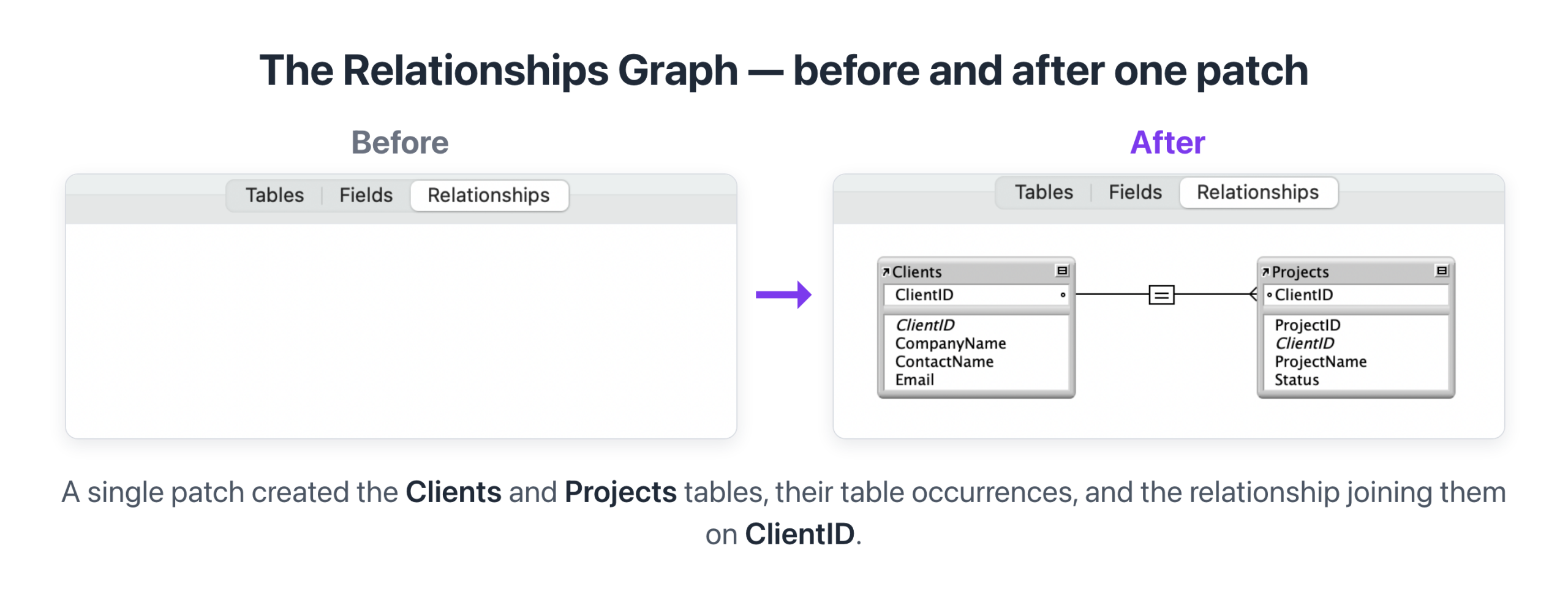
Here’s a simple example. Let’s assume we have a file with a Clients table and a Projects table, where one client can have many projects. We want both tables with their fields, a table occurrence for each, and a one-to-many relationship between them matched on a shared ClientID.
Stage 1 — Design. We describe what we want to Claude in plain language.
Prompt: Design two tables, Clients and Projects. – Clients: ClientID (number, primary key, auto-enter serial), CompanyName, ContactName, Email – Projects: ProjectID (number, primary key, auto-enter serial), ClientID (number, foreign key), ProjectName, Status – Create a table occurrence for each table, then a one-to-many relationship matching Projects::ClientID to Clients::ClientID.
Claude returns a plain-text design — table names, field types and storage options, the table occurrence names, and the relationship match. We read it over and confirm. Catching anything wrong here, while it’s still plain text, is far easier than fixing it after it’s in the file.
Stage 2 — Convert. Once the design is right, Claude turns it into a patch file: AddAction blocks for the tables, the fields, the two table occurrences, and the relationship — ordered within the patch XML file so that each piece exists before something else needs it, and with each new element’s placeholder UUID kept distinct so the cross-references resolve correctly.
The relationship piece of that patch looks something like this (abbreviated to its essential tags; a real patch carries more attributes on each element). First a <TableOccurrenceCatalog> block adds the two TOs: 
First AddAction — adding the two table occurrences
Then a second AddAction creates the relationship, with a join predicate naming the match fields on each side:

Second AddAction — creating the relationship with its join predicate
Notice how the relationship’s <TableOccurrenceReference> elements point at the placeholder UUIDs the TOs were given a few lines earlier (…200000000001 and …200000000002). That’s the same authored-placeholder cross-reference trick discussed in AddAction vs. ReplaceAction — applied here to wire the relationship to TOs that don’t have real FileMaker IDs yet. The fields used in the join predicate are existing fields in the parent tables, so their UUIDs are real values pulled from a Save a Copy as XML read of the file’s current schema.
Stage 3 — Deliver. Claude Code closes the file, runs the FMUpgradeTool with the patch, and reopens the file. You don’t have to close or reopen anything yourself — Claude Code does it.
Stage 4 — Confirm. We open Manage Database and check. Under the Tables tab, both tables are there. Under the Fields tab, the fields show the expected field types, with auto-enter and storage settings as designed. In the Relationships Graph, both table occurrences appear, joined on Projects::ClientID = Clients::ClientID. AI can also do this confirming step on its own by triggering Save a Copy as XML and reviewing the exported schema — for instance, parsing it to confirm a new table occurrence’s UUID is present and properly used by the relationship it was meant to join.
For something this small, the whole thing is quick. Writing the patch takes anywhere from a few seconds to a couple of minutes, then applying it with the FMUpgradeTool feels almost instant. For something larger — a dozen tables with twice as many table occurrences and the relationships between them — it can be nearly as fast. The patch file takes a little longer to write, but the FMUpgradeTool applies it just as speedily.
Save a Copy as XML
When we pair the Patch process with an AI agent’s ability to trigger FileMaker’s Save a Copy as XML feature, a powerful self-aware circle gets created: AI can build a patch, apply it, then read the file back out to either build the next dependent layer of code or check its own work and correct it.
FileMaker’s Save a Copy as XML is available in several ways:
- As a command in the Tools menu.
- As a FileMaker script step, which an AI agent can trigger without a person present, by either:
- Calling the script through a FileMaker URL (requires the fmurlscript extended privilege turned on), or
- Triggering the script through the FileMaker Data API (requires the fmrest extended privilege turned on).
- Through the FMDeveloperTool, another Claris command-line utility that ships alongside the FMUpgradeTool. It can drive Save a Copy as XML directly from the command line — with no in-file script and no extended privileges required.
The script-triggered options have their own trade-offs. The Data API is most commonly used to run the script server-side on a hosted file (FileMaker Pro also exposes a local Data API on the developer’s machine), while the FileMaker URL can be used to run a script in the local FileMaker Pro client. Either way, the file needs to contain a known Save-as-XML script and the matching extended privilege — fmurlscript for the URL approach, fmrest for the Data API approach.
The FMDeveloperTool path is the cleanest for an AI-driven workflow where the developer doesn’t want to add scripts or extended privileges to each target file. Because FMDeveloperTool runs as a command-line utility, Claude Code can invoke it the same way it invokes the FMUpgradeTool.
However it’s triggered, Save a Copy as XML becomes the read-back side: confirming results after a patch, and pulling the IDs of any elements we want to change in subsequent patches.
The Autonomous Iteration Loop
Because Patch writes to the file through the FMUpgradeTool, driven by Claude Code, the actual write happens with no manual paste, no click, no dialog to confirm. And because FileMaker can export its schema back out as XML, Claude can read that export to see exactly what the results are. Write, check, adjust, write again — and the cycle can keep going. We no longer have to follow the semi-manual rhythm of “Claude prepares, the developer pastes, Claude prepares, the developer pastes.” With Patch, an AI agent can apply several patches to the same file in sequence, choosing each next step from what the read-back shows.
Let’s look at how this can work in a more complex example. Say we want to expand the Clients-and-Projects file into a small project-billing system, by adding Invoices and Invoice Items tables, including their fields, table occurrences, and the relationships linking Invoices to Projects and Invoice Items to Invoices, as well as a script that creates a new invoice for a project. That’s a lot of moving parts. Claude can set up and run several patches, deciding each step from what the last one produced:
- First patch — add the two new tables and their fields. Claude Code applies it, then reads the file back out with Save a Copy as XML to confirm the tables and fields are there, and to pick up the element IDs it will need for the next patch.
- Second patch — add the table occurrences and the relationships, matched to the table occurrences and key fields that now exist in the file.
- Third patch — add the script that creates an invoice, referencing the fields and relationships from the first two patches.
The important point is what doesn’t happen in between. We don’t have to manually do anything, no pasting, no intermediary prompts. Claude closes the file, applies each patch, reopens, reads the result, and moves to the next — handling the order of dependencies (for example, tables and fields before the elements that reference them) on its own.
Let me pause and restate that, because it’s a big deal: using the Patch method, AI can run several patch actions on its own to progressively build out a FileMaker file. As developers, we’re really only needed at the beginning to approve the design, and at the end to confirm the results. We can still insert ourselves as a gatekeeper anywhere else in the process — but by choice, rather than necessity. Step in at every checkpoint, only at the big milestones, or just at the end — the pace is yours to set. 
Layout Objects and Themes
So far we’ve focused on the underlying schema, like tables, fields, relationships, scripts. But Patch can also work with layout objects and themes — with some cautions to note.
Patch actions can create layouts with their parts (header, body, footer, and so on) and populate them with real objects — text labels, fields, portals, buttons, button bars, tab and slide controls, web viewers, popovers, basic shapes, even charts — and can apply FileMaker’s built-in themes to a layout. In other words, the same write-it-as-XML approach that builds a relationship can build a working layout.
Let me be upfront, though: layouts and themes are the least settled part of the method. It is working in my own testing, but it hasn’t had the stress-testing or the volume of real-world use that the schema side has. So take what follows as a direction under active development, rather than well-worn ground. I haven’t yet mapped all of its boundaries or failure points.
Two things make layouts more challenging than tables or scripts. First, layout XML is large and densely interconnected — objects reference fields, fields reference tables, styles reference themes — so a hand-built layout patch is far more involved than a field or a script. Second, the layout and theme XML format isn’t formally documented the way we might hope, which makes generating it confidently from scratch genuinely difficult.
It helps to divide themes into two types:
- Existing Themes. Pointing a layout at one of FileMaker’s built-in themes is straightforward — the theme already lives in the file, and the patch just references it. This works well in my testing.
- Custom Authored Themes. Generating a brand-new theme from the ground up is proving to be nearly impossible at the moment. At best it is aspirational right now.
We don’t want to have to construct custom styling for each individual layout object, which means we want access to themes. Yet we don’t want to be stuck with Apex Blue for every layout designed using the Patch method. So what’s the solution?
Donor Themes While it is still experimental, the approach I’ve been exploring is to not generate the theme XML from scratch at all. Instead, I begin from a theme FileMaker itself authored: take an existing, valid theme as a donor, and have AI modify it to suit. Because we’re adapting XML that FileMaker already accepts, we sidestep much of the fragility of trying to build the theme code structure from nothing. In other words, we don’t want to be a theme author, we want to modify existing themes. I want to be clear that this is my current working model based on what I’ve seen so far. A better pathway may emerge. But as a starting point, adapting a known valid donor theme is what I’d recommend today.
AI-assisted native layout work is genuinely possible, and Patch is the most promising route to it I know of — with the honest caveat that it’s the newest and most code-heavy aspect of the method.
Native Layouts vs. JavaScript and WebViewers
Right now there’s a lot of well-deserved buzz around using AI to build user interfaces in HTML, CSS, and JavaScript to appear inside a FileMaker WebViewer. It’s a very effective and efficient approach. AI is good at writing modern web code, and the results can be fast and polished in ways that are difficult to match in native FileMaker layouts.
But it’s worth being clear about what that approach does and does not handle. A WebViewer/JavaScript UI adds richer presentation on top of the FileMaker file. The actual schema underneath — the tables, fields, relationships, and scripts that make the file a FileMaker file — still has to be built. And there are good reasons native FileMaker layouts often remain the preferred choice.
Developer accessibility. A FileMaker developer can easily read, edit, and troubleshoot a native layout directly: open it in Layout mode and change it. When the UI is HTML, CSS, and JavaScript inside a WebViewer, that same developer — if the developer isn’t also a confident web developer — has fewer options. They can ask the AI to fix what’s broken, but they can’t easily make the everyday adjustments that development depends on.
Transactional control and record locking. FileMaker has built-in pessimistic record locking and transactional behavior so deeply woven into our files that it’s easy to forget about. The moment the UI moves to a WebViewer, none of it comes for free: the same record-locking guarantees, transactional rollback, and “another user is editing this record” feedback all have to be rebuilt and retested in the JavaScript layer.
Find mode and Sort. Find mode is easy to take for granted — a user enters criteria, uses operators and ranges, combines requests, and refines results, all without developer code. Sort works the same way, with multi-level priority and the option to save the order with the layout. Move the UI to a WebViewer and both are gone unless we rebuild them in JavaScript. Other native mechanics are in the same category, from printing and PDF generation to the Status Toolbar’s navigation controls and layout-driven security. Some are easier to recreate than others, but each one has to be weighed if a WebViewer UI is the chosen direction.
For these reasons, native FileMaker layouts remain the preferred choice in many situations, and we shouldn’t expect JavaScript/WebViewer interfaces — powerful as they can be — to entirely replace ordinary FileMaker layouts any time soon. That means we still need an AI-assisted way to work with native FileMaker layouts directly, and at present Patch is really the only viable way to do that. The WebViewer and JavaScript direction is valuable for the work it’s good at — but when we want to rely on FileMaker’s native layouts and not build them by hand, FM AI Patch is the method.
Paste vs. Patch vs. JavaScript
Here’s a compact summary of where each approach fits — Paste, Patch, and the JavaScript/WebViewer UI direction alongside them. The capabilities below reflect what each can ultimately do, not the current state of every detail. 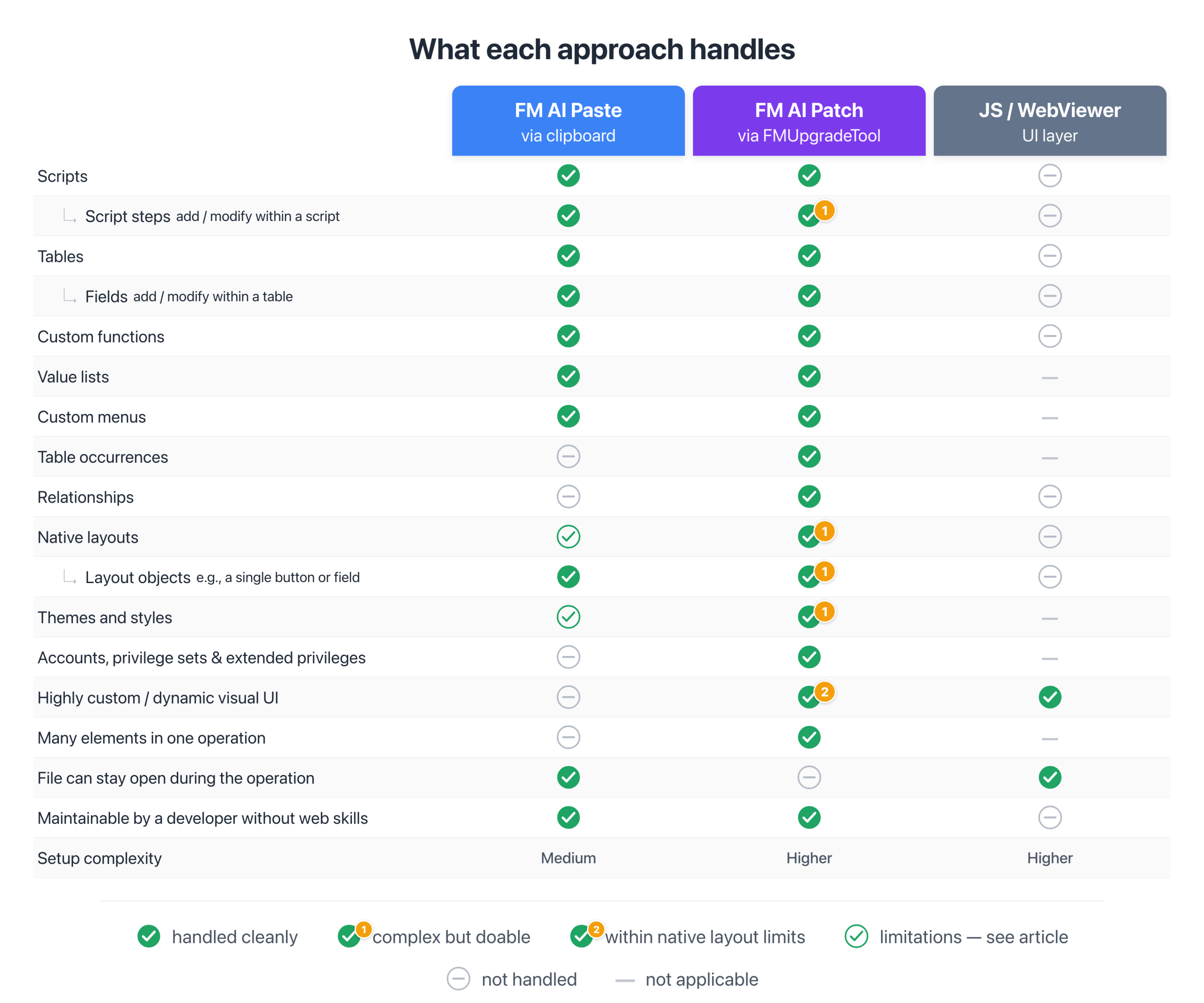
Which method, when
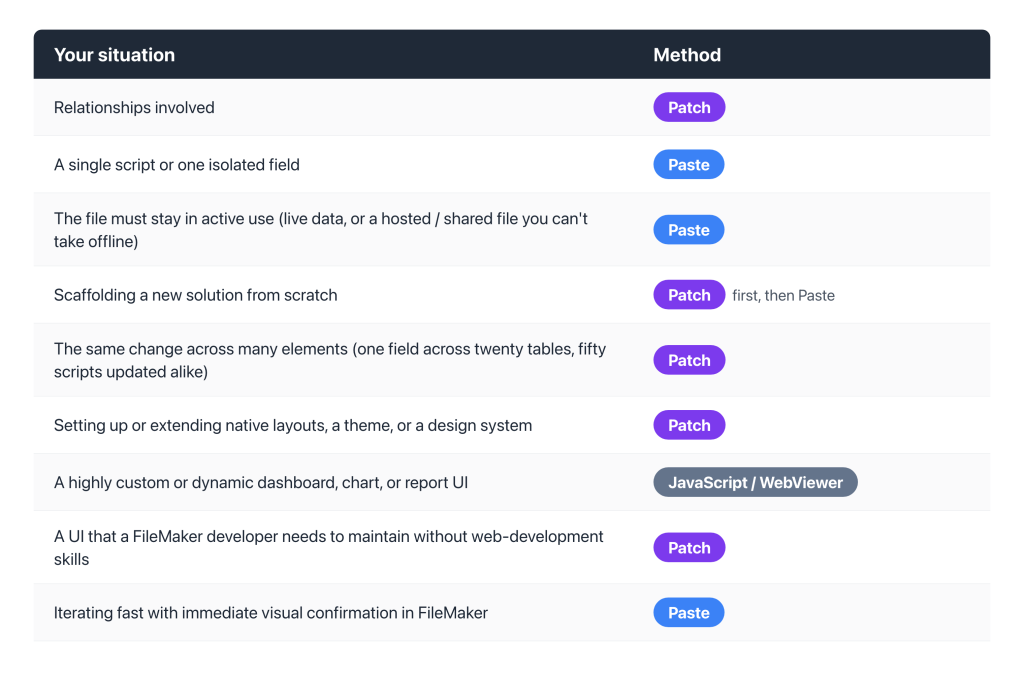
Most real work will use more than one of these techniques — Patch for the broad structure and relationships up front, Paste for individual scripts and quick changes as the file evolves, and a JavaScript UI in a WebViewer where a dashboard or dynamic report calls for it.
Current Limitations and Where This Is Headed
Patch is something we’ve explored enough to be confident in, yet it’s still maturing. It’s worth being clear about where the edges are.
The FMUpgradeTool itself has a few known limitations and issues. I’d especially highlight that its ReplaceAction is less forgiving than AddAction. As noted earlier, some changes you’d expect Replace to make — like editing a script’s steps — need the delete-and-re-add workaround in the current tool, and a careless replace can do harm rather than simply doing nothing.
There is active conversation between FileMaker developers and Claris about the direction of FMUpgradeTool development. Since Claris has publicly named agentic coding for FileMaker as part of the platform’s direction, the hope and expectation is that the FMUpgradeTool will continue to be updated in ways that support the full potential of the FM AI Patch methodology.
The FM AI Patch method we’ve built on top of the FMUpgradeTool is still being refined. I have created working setups for patching scripts, tables and fields, relationships, layouts, and early theme work, and having it all run in an autonomous loop. But I haven’t yet tested the Patch methodology against the full complexity of real-world FileMaker projects. In other words, I and others are exploring this technique and have proven the capability, but it’s cutting-edge and has not yet been widely tested and applied.
Take a moment to think about everything FM AI Patch can already do, such as relationships, layouts, autonomous iteration. When Patch is more fully developed — and as the FMUpgradeTool matures and is better adapted to the needs of AI — we can conceivably achieve full agentic creation of our FileMaker solutions. As a long-time developer of FileMaker solutions, I find that exciting and hopeful — maybe even essential — as we step into this new era defined by AI.
Key Takeaways
- FM AI Patch writes schema directly into a FileMaker file through Claris’s FMUpgradeTool — no clipboard, no paste step.
- Patch changes schema, not data. Everything it does builds or modifies structure — tables, fields, relationships, scripts, layouts. Records are left untouched.
- Relationships are the headline schema capability — the gap that Paste simply can’t fill.
- The Close → Patch → Reopen cycle is fast, and Claude Code handles all of it. You decide when to look, rather than performing each step.
- Many elements — tables, fields, relationships, scripts, even native layouts — can go in a single patch, and a short series of patches can build out a complex file structure with almost no manual steps in between. Pair that with Save-as-XML reading the file back, and the work becomes self-directing.
- Patch is really the only AI-assisted route to native FileMaker layouts. Applying FileMaker’s built-in themes works today. Authoring fully custom themes is probably out of reach for now, but adapting a known “donor” theme appears to be a viable path and the one I’d recommend. This is the most code-heavy corner of the method, but a promising one.
- Patch, Paste, and JavaScript UIs work well together. Patch handles relationships, multi-element changes, and native layouts; Paste remains the easy method for focused, hands-on code changes; a WebViewer UI fits where a highly custom interface is the goal.
Resources
- Claris FMUpgradeTool — help.claris.com. Claris’s command-line tool for applying schema changes directly to a FileMaker file. The engine behind FM AI Patch.
- Claris FMUpgradeTool — patch file format — help.claris.com. Claris’s reference on how a patch file is constructed.
- Claris Save a Copy as XML — help.claris.com. FileMaker’s feature for exporting a file’s schema as XML. The read-back side of the Patch loop.
- Claris FileMaker Developer Tool — help.claris.com. Claris’s command-line developer utility (a sibling of the FMUpgradeTool) that can drive Save a Copy as XML directly from the command line — the cleanest read-back trigger for an AI-driven workflow.
- Claris Database Design Report (DDR) — FileMaker’s structured XML export of a file’s complete schema, useful as reference data to feed AI when working on a specific file.
- Soliant — FileMaker SaveAsXML and FMUpgradeTool: Building Automated Deployments — soliantconsulting.com. A community walkthrough of building deployments on the same Save-as-XML + FMUpgradeTool foundation Patch uses.
- Claude Code — claude.com/code. The file-system, shell, and tool-equipped version of Claude. Required for the Patch workflow.
- FM AI Paste (companion article, previous in this series) — codence.com The clipboard-based AI-assisted FileMaker development workflow.
- FMXML and the FM Clipboard Tool (precursor companion article) — codence.com. Deep dive on FMXML and the clipboard layer that Paste relies on.
- FMXML Developer Reference PDF — Free download. The FMXML reference behind both the Paste workflow and a broader understanding of FileMaker’s XML primitives.
- Soliant patchlab — github.com/soliantconsulting/patchlab. A diff-and-patch-construction harness, useful when working from a two-file Save-as-XML comparison.
Glossary
|
Term |
Definition |
|
AddAction |
A patch operation that creates a new schema element — script, table, field, relationship, and so on — that doesn’t yet exist in the file. The new element carries a placeholder ID (id=”0″) and a placeholder UUID; FileMaker assigns the real ones when it’s created. When a single patch creates several new elements, each placeholder UUID must be distinct. |
|
Agentic AI |
An AI model that can take actions — running programs, working with files — rather than only exchanging text in a chat. Claude Code is the agentic form of Claude, and is required for the Patch workflow. |
|
AI harness |
The combined setup that surrounds an AI model and lets it do useful work in a specific context. For FM AI Patch, the harness might include the agentic AI (Claude Code), the Skills that teach it patch-XML formats, the Claris tools it drives (FMUpgradeTool, FMDeveloperTool), and the small helper scripts that automate close, reopen, and verify. |
|
Autonomous iteration loop |
What becomes possible when Patch (writing to the file) is paired with Save a Copy as XML (reading the schema back out): AI can apply a change, confirm the result, and build the next step on its own — progressively constructing a FileMaker file with the developer stepping in only by choice. |
|
Claude Code |
The file-system, shell, and tool-equipped version of Claude — available as a command-line tool, a Visual Studio Code extension, or a tab within Claude Desktop. Required for the FM AI Patch workflow. |
|
Close → Patch → Reopen cycle |
The basic Patch workflow: close the FileMaker file, run the FMUpgradeTool with the patch, reopen the file, and verify the changes. Claude Code can run all four steps. |
|
DDR (Database Design Report) |
FileMaker’s structured XML export of a file’s complete schema, available from the Tools menu. Useful as reference data to feed AI when working on a specific file. |
|
DeleteAction |
A patch operation that removes an existing schema element from the file. Used in the delete-and-re-add workaround for editing script steps: delete the whole script, then add it back (rebuilt with the changes) so its original UUID is preserved. |
|
FM AI Patch |
The method covered in this article. Schema is written directly into a FileMaker file through Claris’s FMUpgradeTool, with no clipboard step. |
|
FM AI Paste |
The method covered in the previous article. AI generates FMXML, the clipboard carries it, and the developer pastes it into FileMaker. |
|
FMDeveloperTool |
A Claris command-line developer utility — a sibling of the FMUpgradeTool — that can drive Save a Copy as XML directly from the command line, with no in-file script or extended privileges required. The cleanest read-back trigger for an AI-driven Patch workflow. |
|
FMUpgradeTool |
A Claris command-line tool, included with FileMaker Server, for applying schema changes directly to a FileMaker file. Originally built for schema migration during version upgrades. The engine behind FM AI Patch. |
|
FMXML snippet code |
A self-contained FMXML clipboard payload — the format the Paste workflow uses. Different from the patch file the FMUpgradeTool reads. |
|
Parent reference |
The element that owns the target of a Replace. When a ReplaceAction changes a field, the parent reference is the table the field belongs to; the patch has to name it, not just the field. |
|
Patch file |
An XML document the FMUpgradeTool reads: an <FMUpgradeToolPatch> document whose <Structure> element holds <AddAction>, <ReplaceAction>, and <DeleteAction> blocks; an optional sibling <Metadata> element carries non-catalog settings such as file options. The element definitions inside are shaped like FileMaker’s Save-a-Copy-as-XML format. Different from FMXML snippet code. |
|
Placeholder UUID |
A stand-in UUID an AddAction carries for a new element, which FileMaker replaces with a real one on creation. A lone new element may use the all-zero UUID; when several elements are created in one patch, each placeholder must be unique, or the FMUpgradeTool may silently misfile them. |
|
ReplaceAction |
A patch operation that changes an existing schema element in place, identified by its UUID. Requires a Save-as-XML read of the file’s current state to find the target UUID. Has known sharp edges in the current FMUpgradeTool — see the AddAction vs. ReplaceAction section. |
|
Save a Copy as XML |
A FileMaker feature — available in the Tools menu, as a script step, by running that script remotely (through a FileMaker URL or the Data API), and through the FMDeveloperTool command-line utility — that exports a file’s schema as XML. The read-back side of the FM AI Patch loop. |
|
Specialized agent |
An AI agent given a narrower job than a general-purpose assistant — for example, a script-builder agent, a calc-builder agent, or a layout-builder agent. Specialized agents pair the relevant Skills with role-specific context and tools, and they’re part of a more advanced harness pattern beyond what this article describes. |
|
Table occurrence (TO) |
A reference to a base table within FileMaker’s Relationships Graph. The FMUpgradeTool’s relationship work is done in terms of table occurrences, not base tables. |
|
UUID |
The stable identifier FileMaker keeps for a schema element throughout its life. Developers never normally see these, but FileMaker holds one for every element; ReplaceAction uses it to target the exact element to change. |
Companion article: FileMaker AI Foundations: FM AI Paste. Precursor reference: [FMXML and the FM Clipboard Tool] (link to be added at publication). Next in series: FileMaker AI Foundations: What’s New in FM 26 (forthcoming).
Subscribe to get the latest in your inbox.
Comments
Leave a comment

Built with you in mind
Speak to one of our expert consultants about making sense of your data today. During
this free consultation, we'll address your questions, learn more about your business, and
make some immediate recommendations.


Hi Micah! Thanks for you engagement. Ivan will get back to you soon!
Thanks for the patch method write-up — great reference. I’ve been deep in theme patching with FMUpgradeTool 26.0.1.68 and wanted to compare notes, since you mentioned some success with themes and I’d love to know which operations worked for you.
What I found (all verified by reading back the generated file and opening it in FileMaker — I learned the console “Patch File Applied” message and even the GenerateDBFile.log node counts can mislead):
– ReplaceAction on a theme, object- or catalog-level: no-op every time — validated and “applied,” but unchanged.
– DeleteAction, object/member-UUID reference: no-op.
– DeleteAction, catalog-level (catalog’s own UUID): worked — removed the catalog, though it logged “Nodes succeeded: 0,” so the log undersold it; the file confirmed the delete.
– AddAction, catalog-level: worked, but only with care — the theme body had to be exactly as FileMaker authored it (hand-edits husked), the modifications counter had to be incremented, and it had to go into a file with no dangling layout binding to that theme’s UUID. Duplicate-key adds hard-conflict.
Net: catalog-level add and delete were the only things that worked for me.
Was your experience different — did you ever get a ReplaceAction to stick on a theme? And did you have to manage the modifications counter yourself, or did the tool handle it?
Thanks again,
Micah
Micah —
I’m really glad to see that you’re exploring this methodology and its possibilities. Based on your questions, I ran several tests in FileMaker 26 and the new FMUpgradeTool with a clean test file. Those tests uncovered something that’s been hiding in plain sight in my own work. Thank you for that!
First of all, like you, I stopped trusting the FMUpgradeTool’s reporting of “Patch File Applied.” Until Claris gives us clear error reporting in the FMUT, it just means the tool exited. Everything below is verified by closing the file and reading it back with FMDeveloperTool –saveAsXML, then diffing the catalogs. So we’re on the same page there.
With AddAction — I agree with you that it works “with care.” I just identified what that “care” is exactly. Just now, when I tried adding a theme on its own, it vanished every time: I got the usual “Patch File Applied,” but nothing in the ThemeCatalog on read-back. I threw a lot at it, trying to figure out why it was suddenly failing. I tested full FM-authored body vs. lean, modifications 0 / absent / 1, real catalog UUID vs. a fresh one, even a known valid theme body that had worked for me before. Every one silently failed to apply.
I finally realized that a ThemeCatalog AddAction only commits if a layout in the same patch binds the new theme via a LayoutThemeReference. An unreferenced theme is silently discarded at commit. I confirmed that the same theme body, same file, same catalog UUID, no layout gets discarded; but add a layout bound to it and the theme and layout both land, CSS intact. Every prior successful theme patch I’d run quietly carried that combination. I just hadn’t isolated it as the necessary ingredient. So your instinct about layout bindings was dead on. There seem to be two valid approaches: add a layout that references the theme, or rebind an existing layout to it via a Layout ReplaceAction.
The modifications counter — here’s where our notes diverge, and I’d love your input. In my runs I couldn’t replicate your report that manual modification is required. I submitted a bare UUID (no modifications attribute); FM stored the theme with a freshly-minted UUID carrying modifications=”1″ userName=”FMUpgradeTool”, and demoted my submitted UUID to a SourceUUID. I got the same stored result whether I submitted modifications as absent, 0, or 1. The counter looks entirely tool-managed, not something the author increments. I have two thoughts: Are you possibly watching the catalog-level counter (the ThemeCatalog’s own UUID, and its modifications attribute, which I did see FMUT bump on every apply), rather than the theme member’s? Or could it be a build difference?
ReplaceAction — mostly agree, with one wrinkle. The catalog-wrapped form (a Replace inside ThemeCatalog) does nothing for me, exactly as you saw — it applies, and changes nothing. The object-level form is the interesting one: a Replace with type=”Theme” UUID=”…” placed directly under ReplaceAction, with no parent element, since a theme is a top-level catalog member like a value list. There, the patch applies partway. It updates the theme’s top-level attributes — I changed Display from “Minimalist” to “Minimalist EDITED” and that took — but it leaves the CSS body alone. A distinctive marker comment I’d added to the replacement CSS never showed up, and the original CSS came back byte-for-byte intact — so it’s being ignored, not wiped.
That tracks with how CF and value-list replaces behave: the part that actually matters — the formula, the values, the theme’s CSS — lives in a separate store the Replace body never writes to. All of that is a bit of a technical tangent, since I basically found the same behavior as you: you can’t restyle a theme with ReplaceAction. The one nuance is that attribute edits do quietly get applied, which a visual or CSS-only check would miss. For an actual style change, the rule is the same one we already follow for script steps and CF parameters: delete and re-add, rather than replace.
DeleteAction — I think I found the exact structure behind your “catalog-level worked / member-UUID didn’t.” The ItemReference type list FMUT accepts has no plain ThemeReference — the only theme-related type is LayoutThemeReference. That’s the one that works for me:
– ItemReference UUID=”{theme UUID}” type=”LayoutThemeReference” → theme removed
– ItemReference UUID=”{theme UUID}” type=”ThemeReference” → silently does nothing (theme stays)
– CatalogReference catalogName=”ThemeCatalog” uuid=”{theme UUID}” → silently does nothing
Like you, the working delete printed nothing but “Patch File Applied” — no node count — yet the file confirmed the removal. And to your dangling-binding concern: I deliberately deleted a theme that a layout was still attached to, and it’s clean — FMUT removes the theme and strips that layout’s LayoutThemeReference to nothing (no stale UUID left behind). The file reopened in FileMaker with no recover prompt, and the orphaned layout just falls to the default theme at runtime. So deleting a theme out from under a layout appears to be safe.
Duplicate-key adds — I see something different. I couldn’t replicate the conflict you mentioned. A duplicate name (fresh UUID) and a duplicate UUID (fresh name) both just silently failed to apply — “Patch File Applied,” with nothing added and no error. Did your conflict surface when applying the patch, or when FileMaker next opened the file? I’m wondering if we’re seeing the same collision resolve differently.
The two places we differ (the counter, and duplicate-key behavior) are the interesting ones, and I’d be happy to compare XML and test files with you, if you continue to get different results.
Thanks again, Micah — your questions have been helpful in focusing some of my own tests.
Ivan